

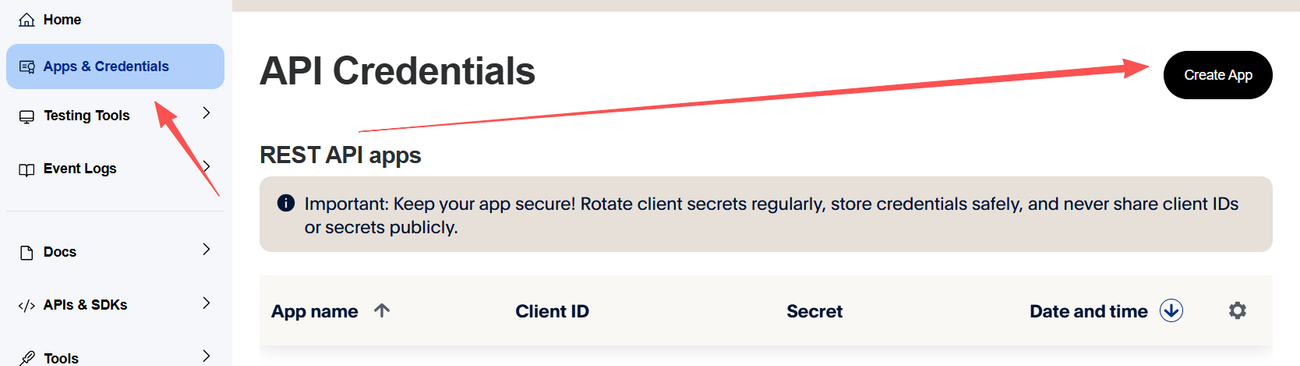
First, we’ll install the necessary plugins, such as WooCommerce, then add several products. After that, we need to register an account with PayPal and locate this section:
Then you can create an app, as shown in the figure:
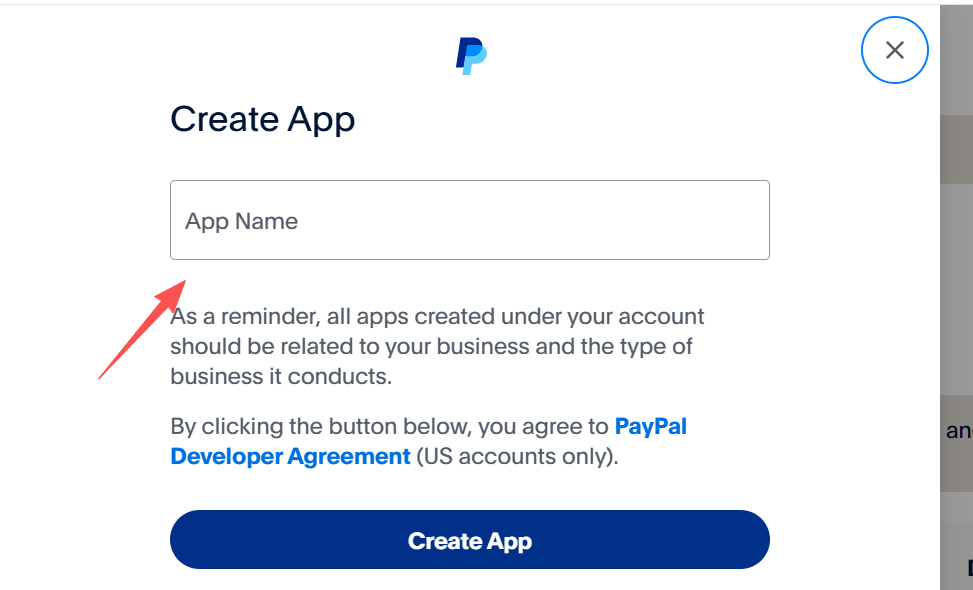
Next, create the app name, as shown in the figure:
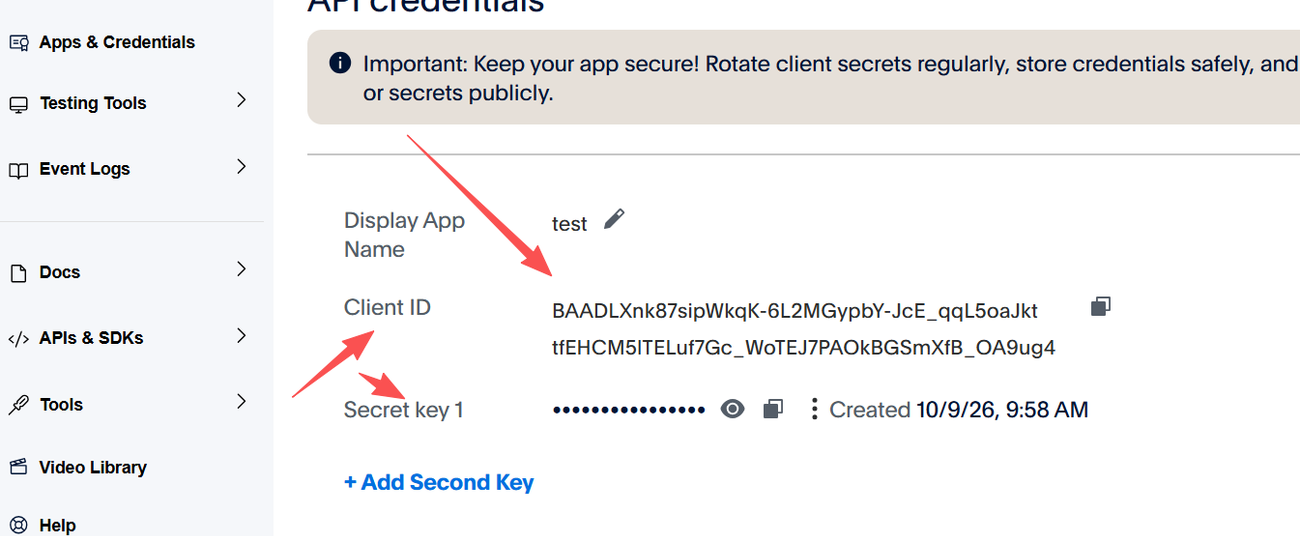
Then you can see the client ID and secret, as shown in the figure:
However, it has not yet been linked to our corresponding WordPress standalone website.
We need to install this plugin: WooCommerce PayPal Payments, and then set it up. During the setup process, use this:
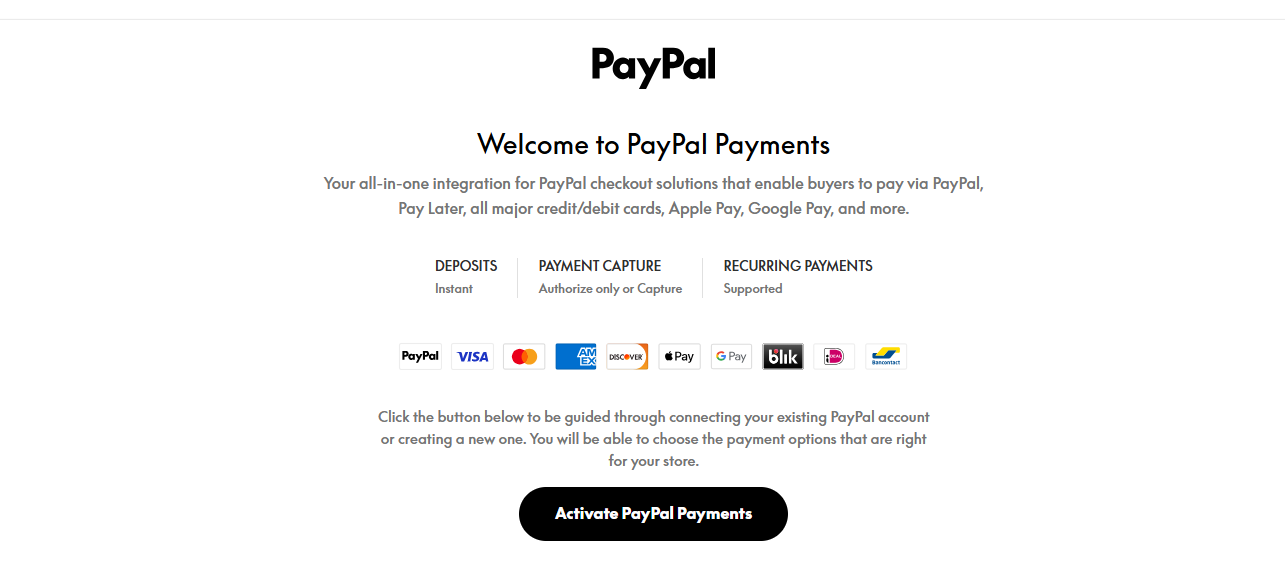
Then comes the setting of this:
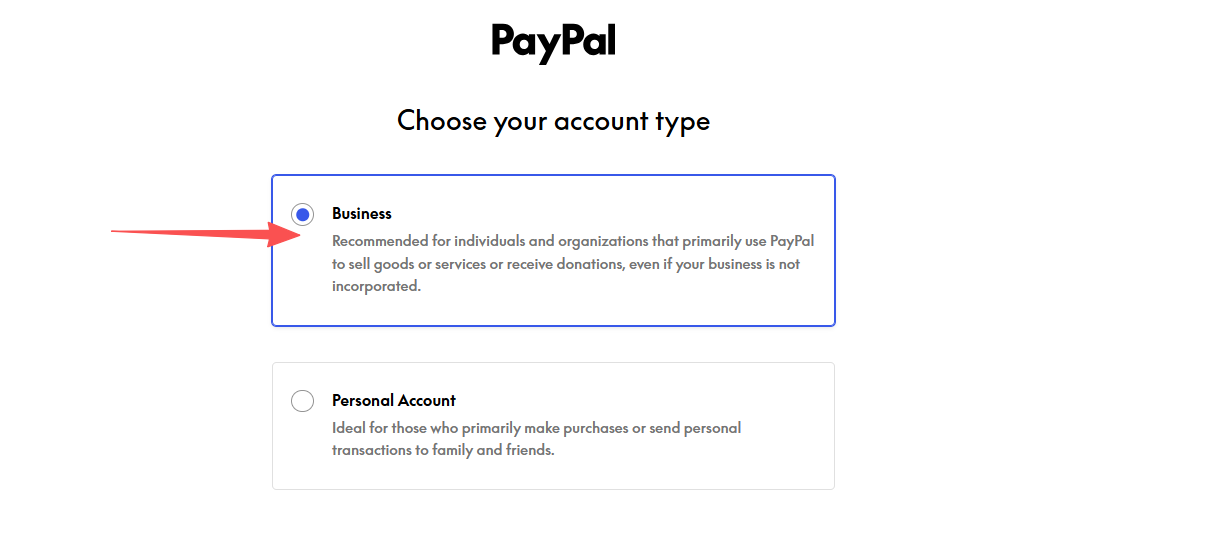
Select the product type that suits your sales strategy:
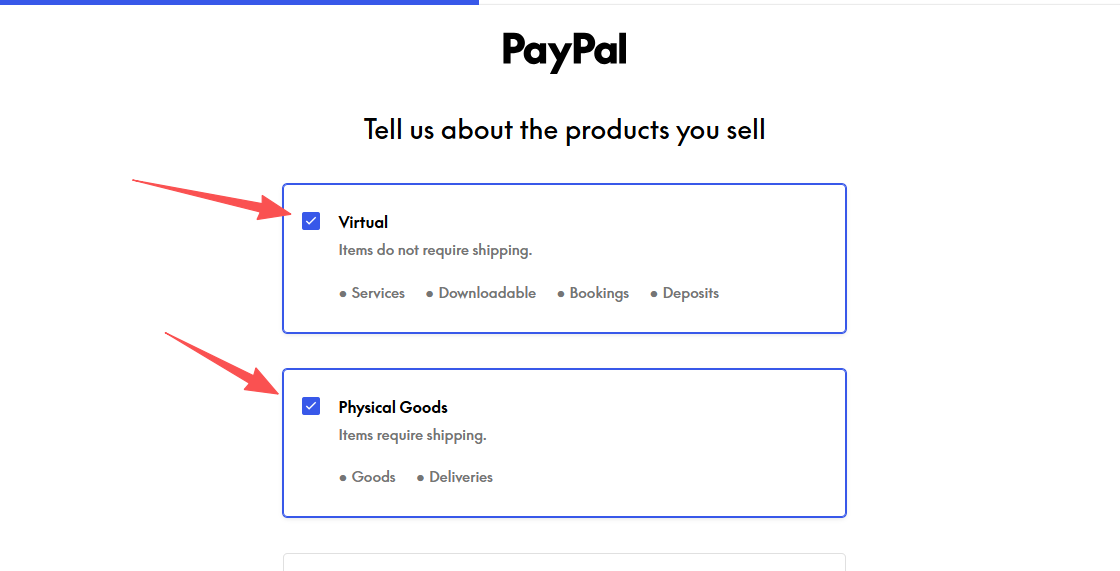
Then comes the setting of this:
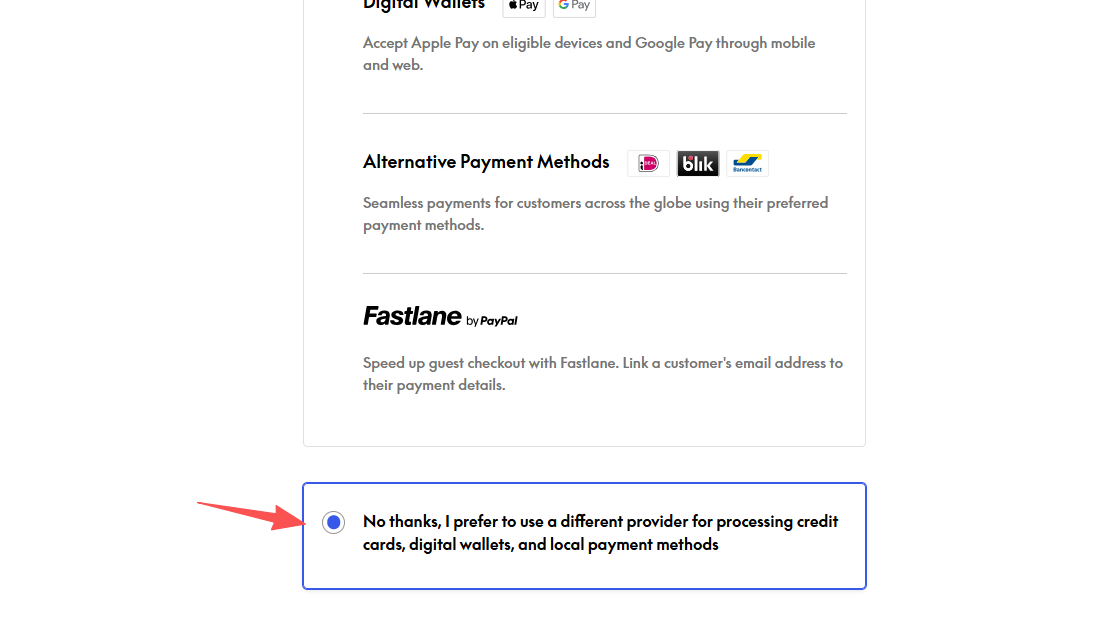
Here, manual setting is selected:
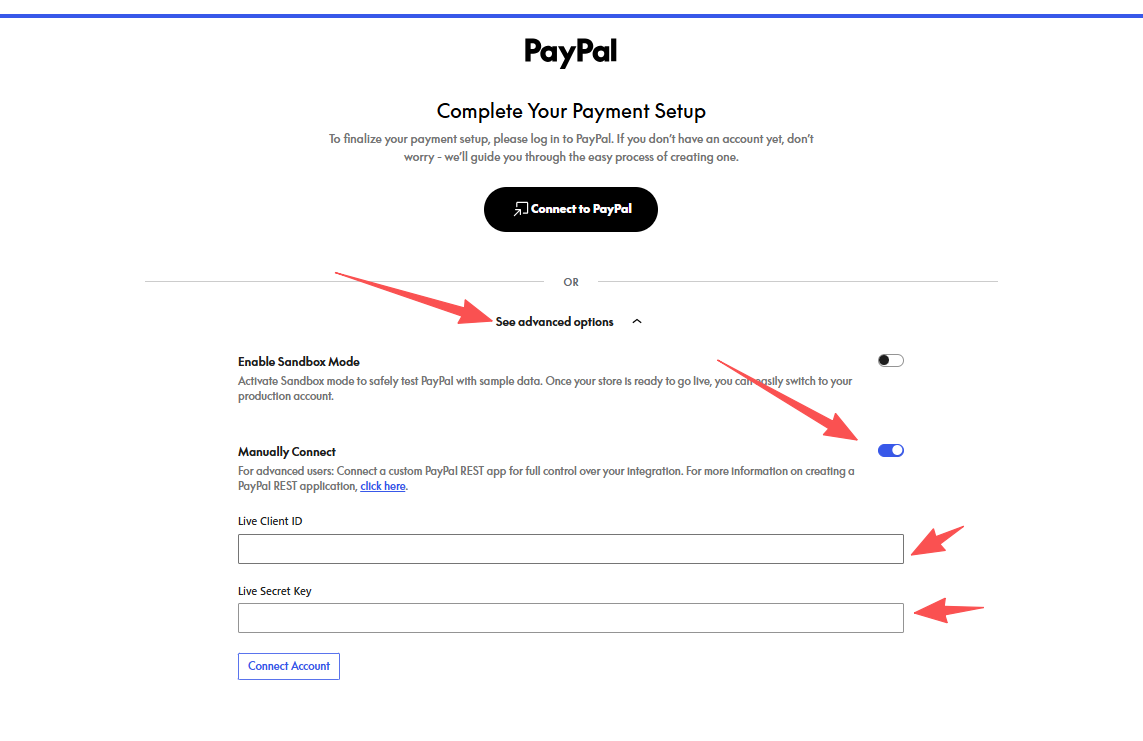
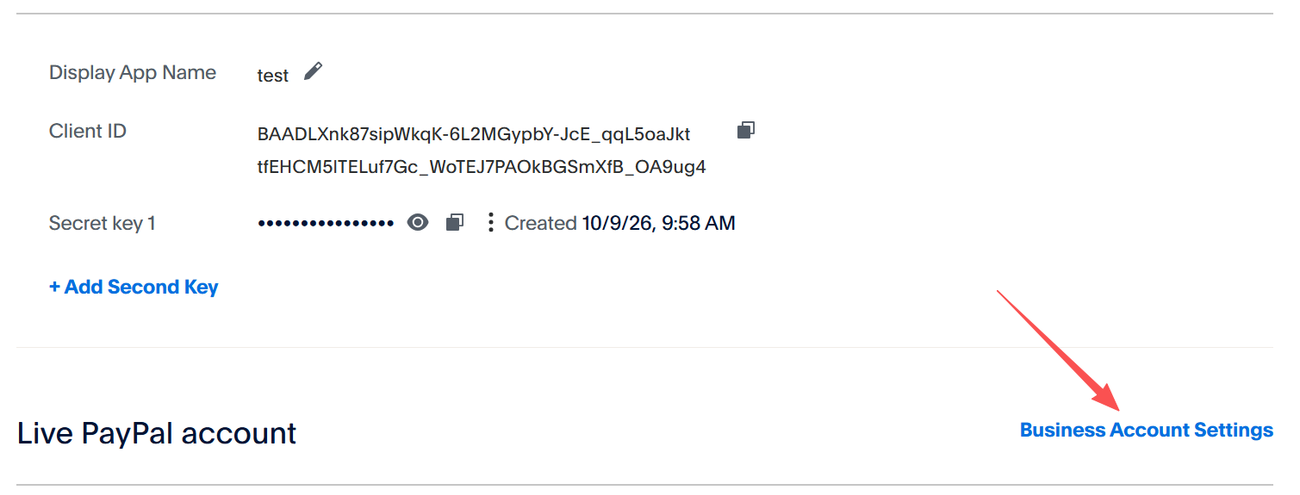
Then go to PayPal to obtain this: Live Client ID and Live Secret Key, which are the Client ID and Secret key of the application added in PayPal.
How to find the API key and API secret? Please refer to this procedure:
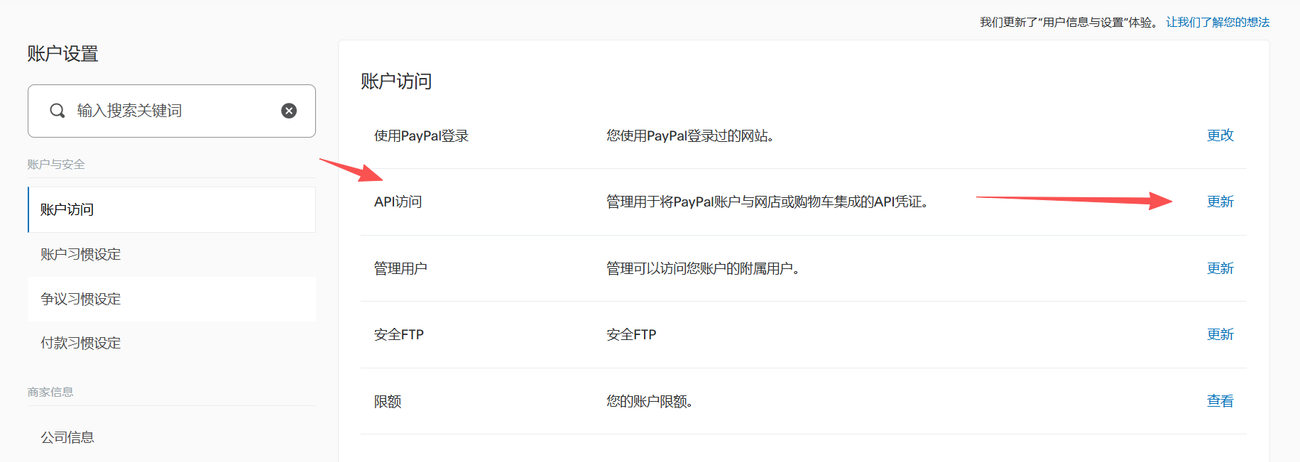
How to click “Update“? There are settings available there:
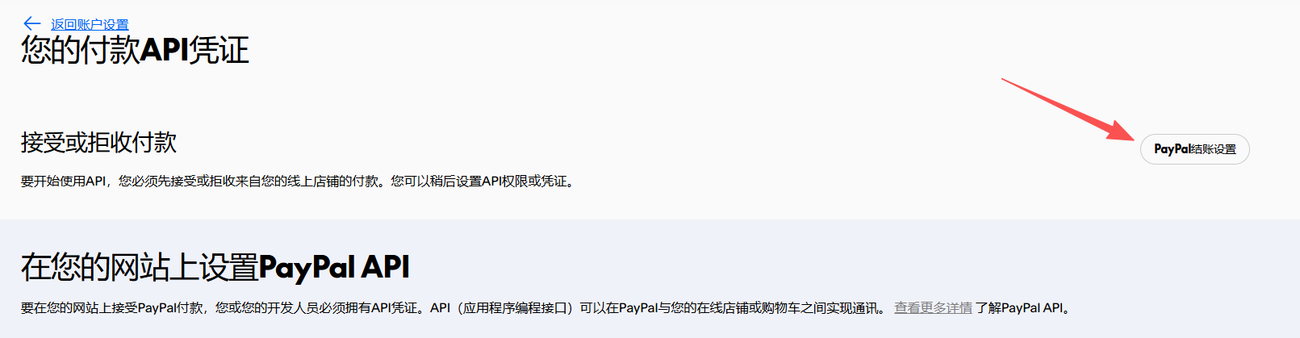
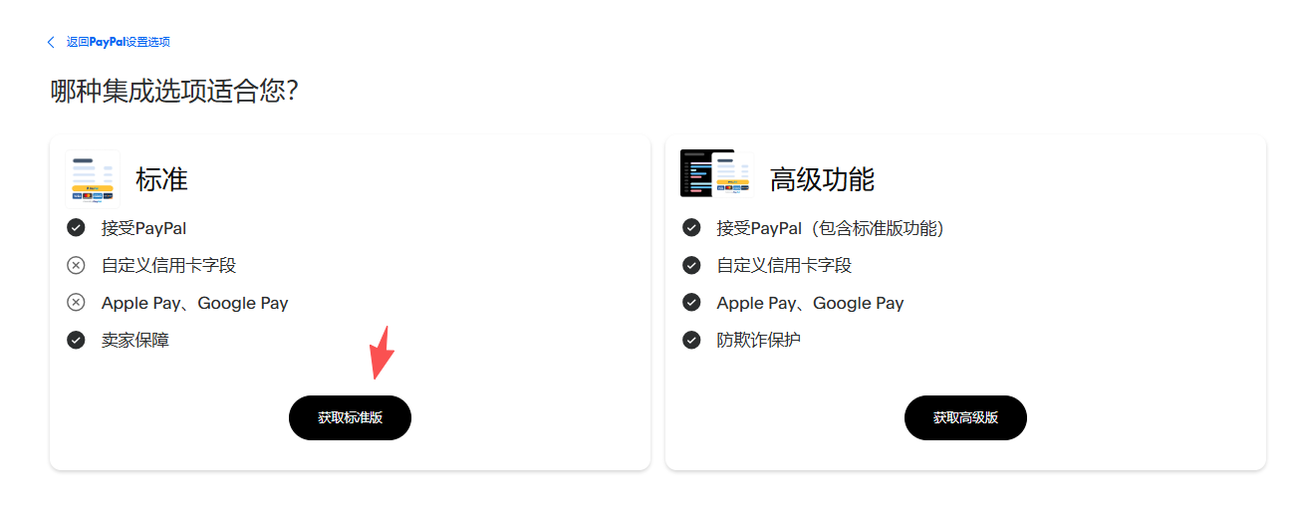
This is the information related to the API:
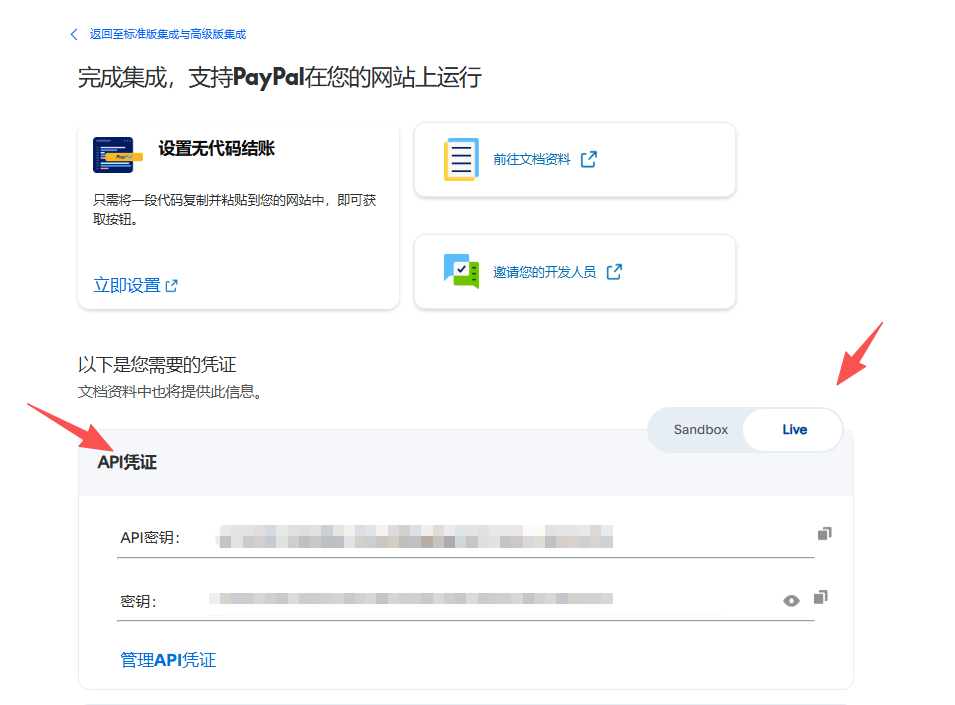
However, this doesn’t need to be filled in on WordPress. You only need to enter the client ID and secret provided in the “Create App” section. If the addition is successful, it will automatically be associated below, for example:
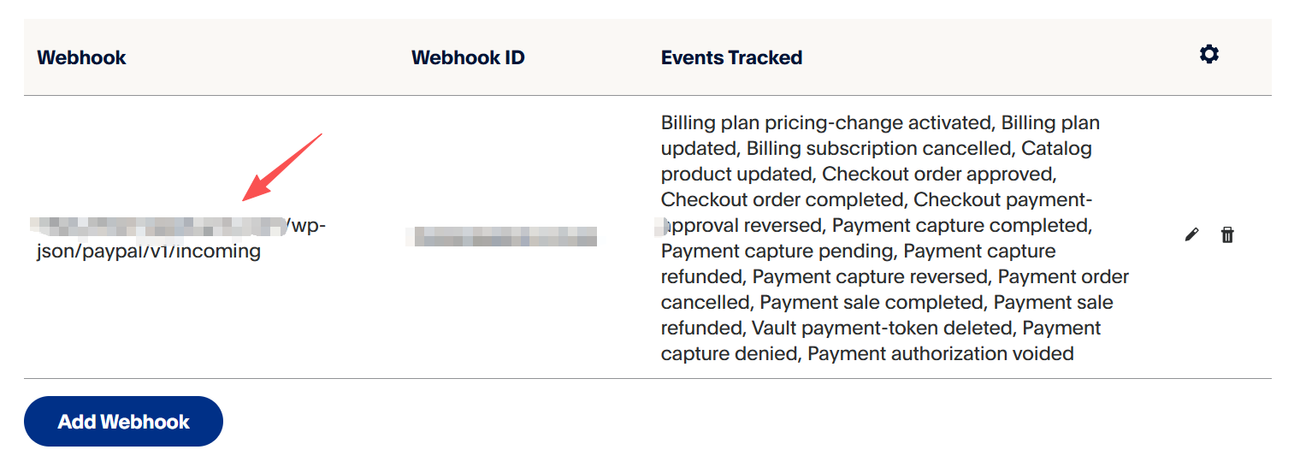
If you have set it up correctly, you should be prompted that you have successfully linked to the independent website. From then on, your website can use PayPal for receiving payments.
relate link: