


Back up and move WordPress without the fear of losing anything.
Duplicator turns a full WordPress backup and migration into a downloadable package you can deploy on any server. But the process has a few sharp edges: timeouts, memory limits, and a roughly 2 GB ceiling on the free version that stops large sites in their tracks.
This guide covers the settings that matter, the errors you will actually hit, and — most importantly — how to migrate a site larger than 2 GB even with the free version.
What Duplicator actually does
Duplicator packages two things into a single archive: your WordPress files (themes, plugins, uploads) and your database. It also writes an installer.php script. On the new host you upload the archive plus the installer, open installer.php in a browser, and it unpacks everything and rewrites the URLs for you.
The free version is simply called Duplicator; the paid one is Duplicator Pro. Most of the errors below come from the same root cause: the build process running out of time or memory while zipping a large site.
Backup settings that prevent most failures
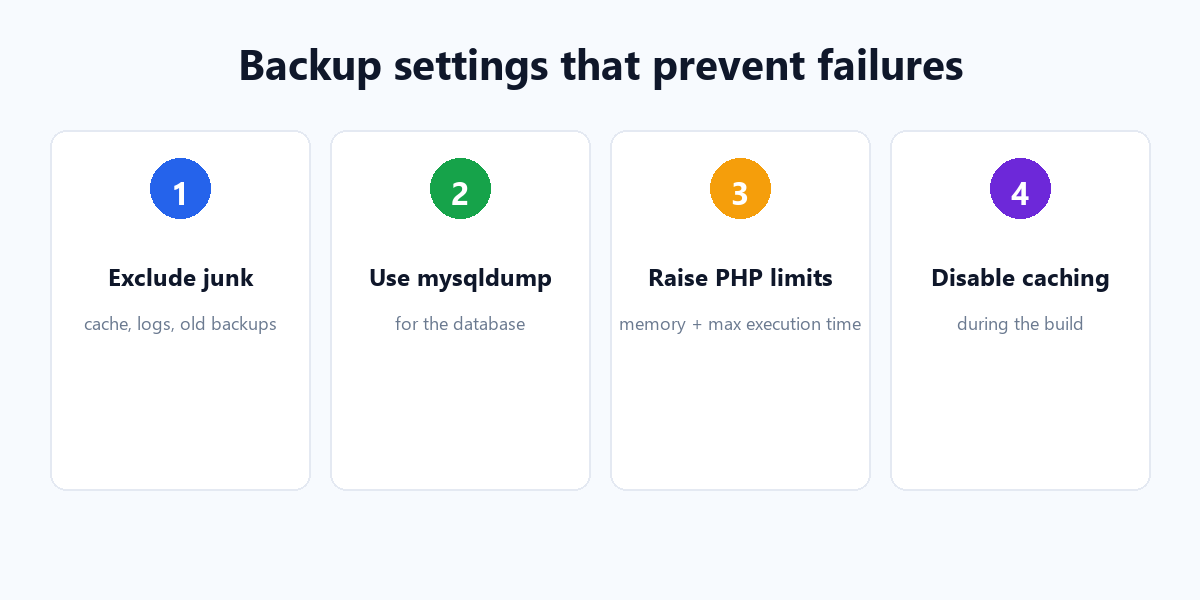
Before you click “Build”, set these up. They turn a flaky build into a reliable one.
- Exclude junk from the archive. In the package settings, use the archive filters to skip folders like
wp-content/cache, old backups, and log files. Smaller archive = faster, more reliable build. - Use mysqldump for the database. On the database step, prefer
mysqldumpover “PHP code” when it is available — it handles large databases far more reliably. - Raise PHP limits. Increase
memory_limit(256M or higher) andmax_execution_timein your hosting settings before building. - Disable caching and security plugins during the build — they can interfere with the process and bloat the archive.
Common build errors and how to fix them
| Error | Cause | Fix |
|---|---|---|
| Build Interrupt / timeout | Server kills the build mid-zip | Raise max_execution_time; exclude large folders |
| Allowed memory size exhausted | PHP memory_limit too low | Raise memory_limit to 256M+ |
| Unable to create archive / zip error | Large archive or missing ZipArchive | Shrink the archive; check PHP zip extension |
| open_basedir restriction | Host restricts file access paths | Ask the host to relax open_basedir, or use mysqldump |
| Database connection / install errors | Wrong DB credentials on install | Re-enter host, DB name, user, password in installer |
The 2 GB limit: why it exists
The free version builds its archive with the standard PHP zip library, which struggles as the archive grows. In practice, sites whose wp-content/uploads has pushed the total past roughly 2 GB start failing with timeouts or zip errors during the build. Duplicator Pro removes this ceiling with its DupArchive format, cloud storage, and scheduled backups.
But you do not have to buy Pro to move a large site. The workaround below has been used for years and deploys cleanly.
The non-Pro workaround for sites over 2 GB
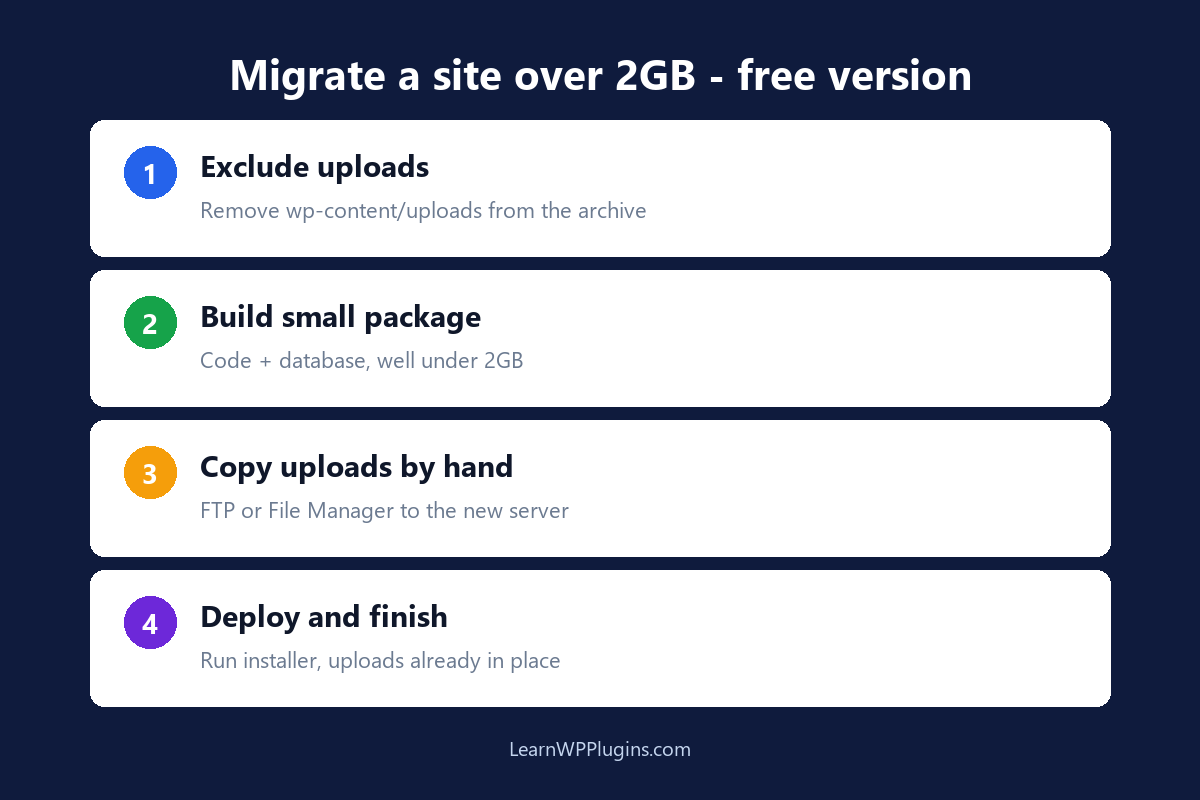
The trick is simple: the database and code are small; the uploads are big. So you back up the small parts with Duplicator and move the big parts by hand.
Step 1 — exclude the uploads folder from the package
In the package archive filters, exclude wp-content/uploads (and any other giant folders). This drops the package size well below the 2 GB limit, so the build succeeds.
Step 2 — build a small package
Build the package normally. You now have an archive containing your database, themes, and plugins — but no media files.
Step 3 — copy the uploads folder separately
Download wp-content/uploads from the old site using your host’s File Manager or an FTP client, and upload it to the new server’s wp-content/uploads folder.
Step 4 — deploy and finish
On the new host, upload the Duplicator archive and installer.php, run the installer, and complete the migration. Then confirm the uploads folder you copied is in place. Your site is fully migrated — database, code, and media — without Pro.
Keep the whole thing reliable
Whichever path you take, the same habits make migrations safe: build the package from a quiet site (no active caching), verify the archive downloads completely, test the install on a subdomain first, and keep the original live until the new site loads correctly.
For more on keeping a WordPress site backed up and protected, our WordPress plugin tutorials cover the plugins and workflows that make backups a habit instead of an emergency.