
The question every beginner asks: which terminal do I actually use?
You install OpenClaw, then stare at two terminals and wonder: do I run openclaw in PowerShell or in WSL? Where does npm go? And is that Node 24 requirement on the Windows host or inside WSL?
This guide clears it up in one sitting. By the end you will know exactly where every command lives and why it matters.
The one idea that clears everything up
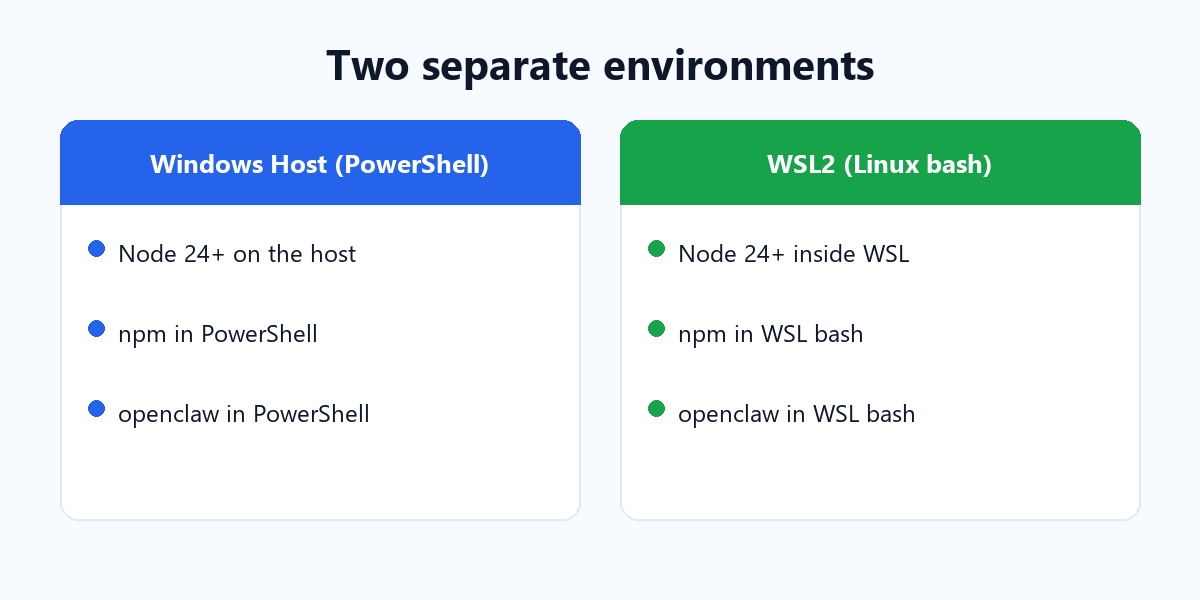
Windows and WSL are two separate environments, each with its own files, its own Node.js, and its own installed command-line tools. Something you install in one environment is not automatically available in the other.
That single sentence answers every question below. Keep it in mind and the rest is just detail.
What WSL actually is
WSL (Windows Subsystem for Linux) runs a real Linux environment inside Windows. It has its own file system, its own package manager, and its own shell (bash). It is not a wrapper around Windows commands — it is a genuine Linux machine sharing your PC’s hardware.
The logic, drawn as a diagram
Here is the whole mental model in one picture. Every command — node, npm, and openclaw — lives in whichever environment you installed it in.
flowchart TD
    PC["Your Windows PC"] --> Q{"Where did you install OpenClaw?"}
    Q -->|"PowerShell / CMD (host)"| HOST
    Q -->|"WSL2 (Linux bash)"| LINUX
    subgraph HOST["Windows Host"]
        H1["Node 24+ installed on the HOST"]
        H2["npm runs in PowerShell"]
        H3["openclaw runs in PowerShell"]
        H1 --> H2
        H1 --> H3
    end
    subgraph LINUX["WSL2 (Linux)"]
        L1["Node 24+ installed INSIDE WSL"]
        L2["npm runs in WSL bash"]
        L3["openclaw runs in WSL bash"]
        L1 --> L2
        L1 --> L3
    end
    HOST -.-|"Separate: nothing crosses over"| LINUX
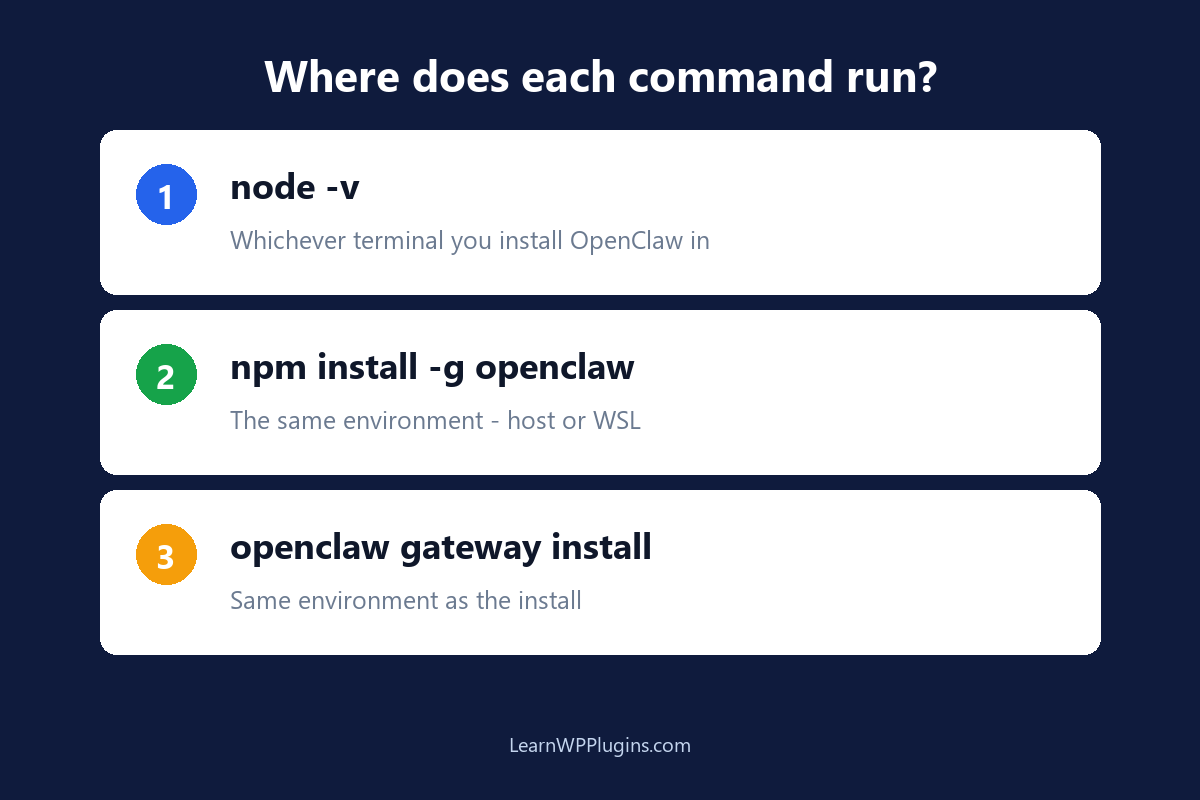
Where does Node 24 live?
The Node requirement applies to whichever environment you install OpenClaw into — not both.
- If you install OpenClaw on the Windows host (PowerShell), then Node 24.16+ or 26.1+ must be installed on the host. The installer can do this for you.
- If you install OpenClaw inside WSL (bash), then Node must be installed inside WSL. The host’s Node is irrelevant here.
You can check which Node a given terminal sees by running node -v there. PowerShell and WSL will often report different versions, because they use different installations.
Where does npm run?
npm is the package manager that ships with Node, so it runs in the same environment as that Node. There is no single global npm — there is a host npm and a WSL npm.
- Running
npm install -g openclawin PowerShell installs OpenClaw for the host. - Running the same command in WSL installs OpenClaw for WSL.
They are different installs in different places. That is exactly why the confusion happens: the command looks identical, but the environment decides where it lands.
Where does openclaw run?
Same rule. openclaw is a command-line program installed into one environment at a time.
- Installed on the host → run
openclawin PowerShell or CMD. - Installed in WSL → run
openclawin the WSL bash prompt.
Commands like openclaw gateway install, openclaw dashboard, and openclaw skills install all run in the same environment where OpenClaw itself was installed.
Two concrete scenarios
Scenario A — you installed everything in PowerShell
Then your whole workflow stays on the Windows host:
# in PowerShell (host)
node -v                  # Node on the host
npm install -g openclaw@latest --allow-scripts=openclaw
openclaw gateway install
openclaw dashboard
You do not need WSL at all. Everything — Node, npm, and openclaw — is on the host.
Scenario B — you installed everything inside WSL
Then your whole workflow stays inside WSL:
# in WSL (bash)
node -v                  # Node inside WSL
curl -fsSL https://openclaw.ai/install.sh | bash
openclaw gateway install
openclaw dashboard
Here the host’s Node and npm are irrelevant. WSL has its own copy of everything.
Mistakes that cause the confusion
- Installing in PowerShell, then running in WSL (or the reverse). The command will be “not found” because the other environment does not have it.
- Installing Node on the host, but installing OpenClaw in WSL. WSL will complain that Node is missing, because it cannot see the host’s Node.
- Assuming one shared environment. The identical-looking terminals hide the fact that they are two machines.
Which should you use?
- You are new or want the simplest path — install everything on the Windows host (PowerShell). Fewer moving parts, and the desktop app also runs natively on the host.
- You are comfortable with Linux and want a clean, isolated environment — WSL works well. OpenClaw also supports running the Gateway in WSL2 while you connect from Windows.
- Whatever you pick, stay consistent. Pick one environment for Node, npm, and openclaw, and use that same terminal for all three.
openclaw, run npm in that same terminal, and make sure that same environment has Node 24+.A mental model you can reuse
The next time you wonder “is this on the host or in WSL?”, ask one question: in which terminal did I install it? The answer is the environment everything belongs to. Once you install OpenClaw, Node, and npm together in one place and stay there, the whole experience becomes predictable.
For the rest of the OpenClaw setup — connecting a channel, installing skills, and running the Gateway — our WordPress plugin tutorials walk through the practical steps you will actually use. Get the environment right once, and everything after it gets easier.