
One assistant, three ways to install it on Windows.
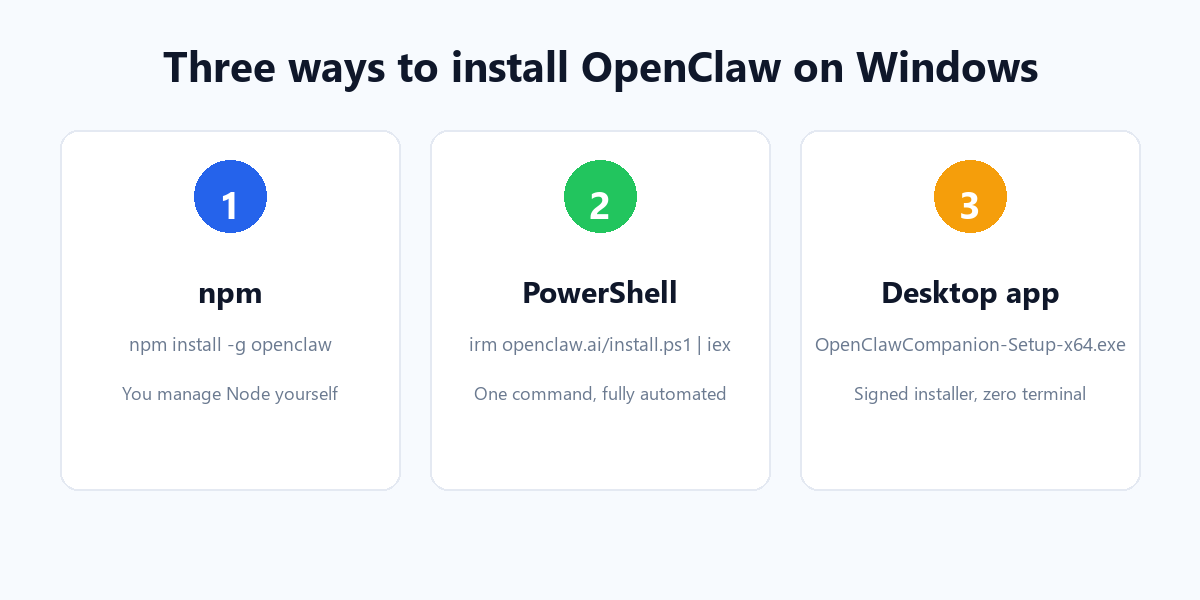
OpenClaw gives you three Windows installation paths, and they all end at the same place: a local Gateway, a chat you can reach from any device, and a command line called openclaw. The difference is how much you want to manage by hand, how you feel about the command line, and how reliable your network is.
This guide installs OpenClaw three ways, compares the trade-offs, and then walks through what every method shares: how to manage it, how to start it, and how to install new skills later.
What every method needs first
All three methods require Node.js 24.16 or later, or Node 26.1 or later (Node 26 is recommended because it starts faster and uses less memory). The key difference is who installs that Node for you:
- npm — you install and manage Node yourself.
- PowerShell script — the script detects and installs Node automatically (winget, then Chocolatey, then Scoop, then a portable fallback).
- Desktop app — the app handles its own runtime, so you rarely think about Node at all.
node -v and make sure it is 24.16+ or 26.1+ before you start.Method 1 — Install with npm
npm is the developer’s path. You keep full control over Node and the install, and you update OpenClaw with a single command. The cost is that you must have Node set up correctly first.
How to do it
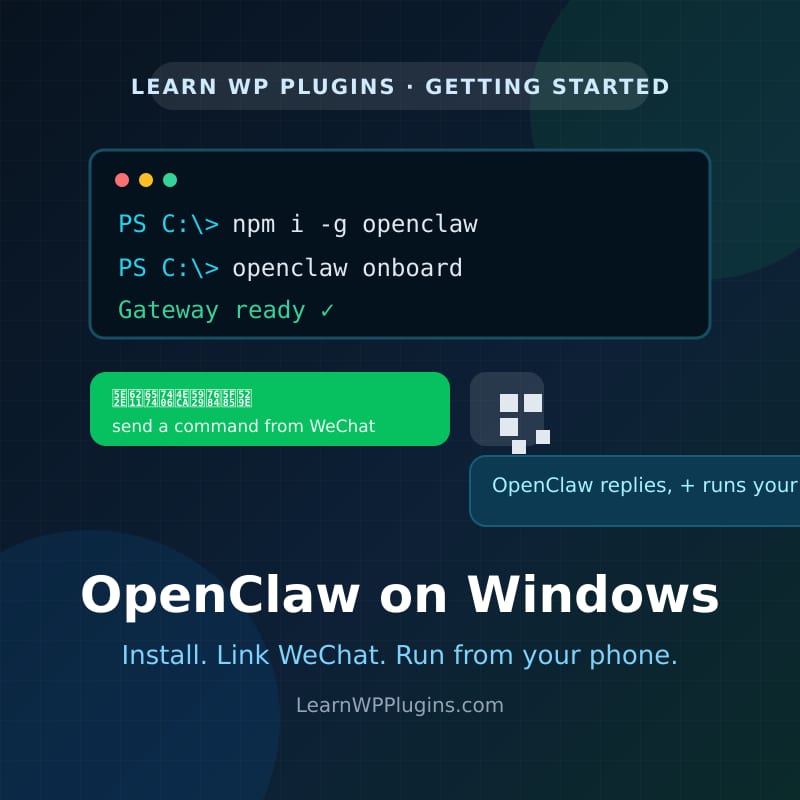
Open PowerShell or Command Prompt and run:
npm install -g openclaw@latest --allow-scripts=openclaw
openclaw onboard --install-daemon
The --allow-scripts=openclaw flag matters on npm 12 and npm 11.16+, which block unapproved package lifecycle scripts by default. If you are on npm 11.15 or older, drop the flag and use npm install -g openclaw@latest instead.
Advantages
- Full control over Node version and the install.
- Fastest to update:
openclaw updateornpm install -g openclaw@latest. - No extra GUI or tray app if you prefer a clean terminal workflow.
Disadvantages
- You must install a supported Node version yourself first.
- More likely to hit a PATH issue, where
openclawis not found until you add npm’s global prefix to your PATH. - npm’s newer lifecycle-script policy adds a flag you must get right.
Method 2 — The one-line PowerShell installer
This is the recommended method for most people. One command does everything: checks your system, installs Node if it is missing, installs OpenClaw via npm, and starts onboarding.
How to do it
Open PowerShell and run:
powershell -c "irm https://openclaw.ai/install.ps1 | iex"The classic equivalent is iwr -useb https://openclaw.ai/install.ps1 | iex. Both download the script from openclaw.ai and run it. If you want to skip the interactive onboarding, use ... -NoOnboard.
Advantages
- One command, fully automated — no manual Node install.
- Handles PATH setup and onboarding for you.
- Same result as npm, with fewer chances to make a mistake.
Disadvantages
- Executes a remote script, which some security policies block or flag.
- Depends on several network endpoints (openclaw.ai for the script, then npm and possibly GitHub for Node or Git).
- Less transparent than running each step yourself.
Method 3 — The Windows desktop app (signed installer)
If you would rather not touch a terminal at all, the Windows Hub companion app is the easiest path. It is a signed installer you download and run like any Windows program, with a setup wizard, a system tray icon, and a built-in chat.
How to do it
Download the installer and run it:
https://github.com/openclaw/openclaw/releases/download/v2026.9.1/OpenClawCompanion-Setup-x64.exeDuring first-run setup it can provision a local Gateway for you, or connect to an existing one. After that, you manage OpenClaw from the tray and the app instead of the terminal.
Advantages
- Easiest for non-technical users — no terminal, no Node, no PATH.
- Signed installer with a familiar Windows setup experience.
- Tray status, chat, and node mode built in.
Disadvantages
- Larger download than the CLI-only paths.
- GUI-first; if you later want the full CLI, you still need to know the terminal.
- Updates flow through the app rather than a simple
npmcommand.
The three methods, side by side
| Dimension | npm | PowerShell script | Desktop app (.exe) |
|---|---|---|---|
| Difficulty | Medium (need Node) | Easy (one line) | Easiest (GUI) |
| Node setup | You install it | Auto-installed | App-managed |
| Network endpoints | npm registry | openclaw.ai + npm + GitHub | GitHub |
| Updating | openclaw update | openclaw update | Via the app |
| Best for | Developers | Most users | Non-technical users |
After install: what all three share
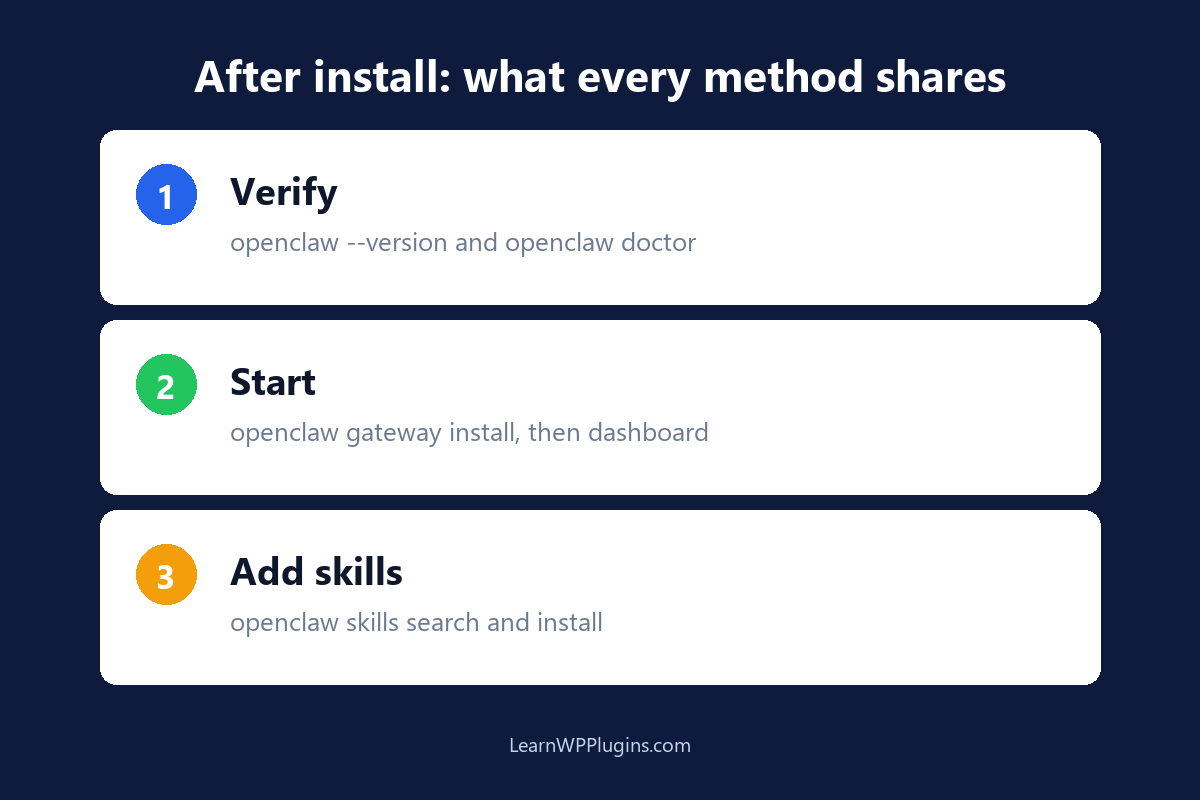
No matter which method you chose, you end up with the same openclaw command line, the same Gateway, and the same Control UI. These are the commands you will use to manage and start it.
Verify the install
openclaw --version      # confirm the CLI is available
openclaw doctor         # check for config issues
openclaw gateway status # verify the Gateway is running
Start it in the background
To keep the Gateway running even after you close the terminal, install it as a service:
openclaw gateway install   # Scheduled Task on Windows
openclaw gateway restart
openclaw dashboard         # open the Control UI in your browser
On Windows this installs a Scheduled Task first, with a per-user Startup-folder login item as a fallback if task creation is denied. The desktop app does this for you during first-run setup.
How to install new skills later
Skills are the reusable capabilities OpenClaw loads to handle specific jobs. Whichever install method you used, skill management is identical:
openclaw skills search "backups"   # find a skill
openclaw skills verify my-skill    # review before installing
openclaw skills install my-skill   # install it
openclaw skills list               # see installed skills
openclaw skills update --all       # update them
Use --global with install or update to share a skill across all your local agents. To remove one, use the standalone ClawHub CLI: clawhub uninstall @owner/my-skill.
openclaw skills verify and review a skill before installing it.Which one should you pick?
The choice comes down to two things: how comfortable you are with the command line, and how reliable your network is.
- Good access to npm and GitHub — any method works. The PowerShell script is the fastest all-rounder.
- Limited or unstable network — npm is the most controllable, because you can point npm at a faster registry mirror and retry the single
installstep. The desktop app depends entirely on downloading from GitHub, which can be slow or blocked in some regions. - No terminal experience — the desktop app is the clear winner.
- You are a developer — npm gives you the control you want.
Install once, then let the skills do the work
The installation method is a five-minute decision. What matters long-term is the same regardless of how you got there: a running Gateway, a Control UI you can reach from any device, and a growing set of skills that handle your recurring tasks.
If you are setting up a WordPress site alongside OpenClaw, our WordPress plugin tutorials walk through the plugins and workflows that pair well with an always-on assistant. Install OpenClaw once, connect a channel, and let the assistant handle the rest.