


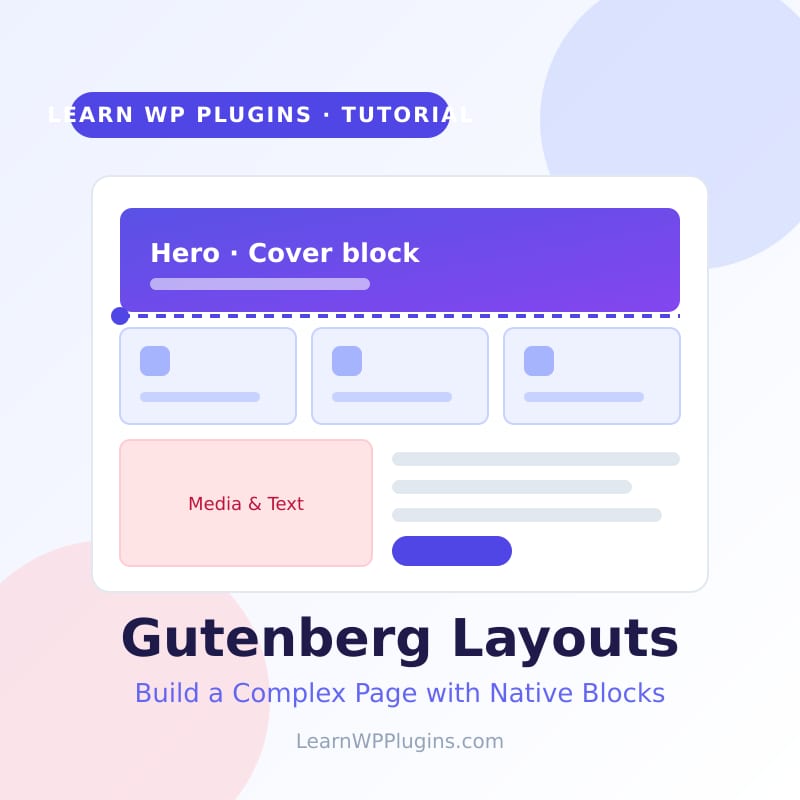
The Gutenberg block editor is far more powerful than most people realise. Without installing a single page builder, you can assemble professional landing pages from native blocks: a full-width hero, multi-column feature sections, alternating image and text rows, and a closing call to action. In this Gutenberg editor tutorial you will build exactly that kind of complex page layout, step by step, using only the blocks that ship with WordPress.
If you are new to the editor, start with our WordPress for beginners guide first, then come back here to build the page. Everything in this tutorial works on any modern WordPress site with no premium add-ons.
Why build layouts with native Gutenberg blocks?
Page builders are popular for good reasons, but native blocks keep your site lean and future-proof. When you build with core blocks you get:
- No extra plugin weight. Nothing to update, nothing to slow down the front end.
- Cleaner HTML. Core blocks output predictable, accessible markup.
- Portability. If you change themes, your content still works.
- Performance. Fewer scripts and stylesheets load on every visit.
- Long-term support. Core blocks are maintained by WordPress itself.
What you will build
We are going to create a single landing page made of four stacked sections:
- A hero section with a headline, a short paragraph, and a button.
- A three-column feature section with icons.
- Two alternating Media and Text rows.
- A closing call-to-action with a coloured background.
The same techniques scale to portfolio pages, service pages, and full brochure sites.
The native blocks you need
You only need six core blocks. Learn these and you can assemble almost any layout:
- Group – wraps a section so you can give it a background and padding.
- Columns – places blocks side by side and stacks them on mobile.
- Cover – a section with a background image or colour and content on top.
- Media and Text – an image beside text, ideal for alternating rows.
- Buttons – one or more call-to-action links.
- Spacer – precise vertical breathing room.
Step 1: Plan the layout before you touch a block
Good layouts are decided on paper first. Sketch the four sections and, for each one, note which block builds it. Thinking in nested groups from the start prevents the most common beginner mistake: hundreds of loose blocks that are impossible to move later.
A useful rule: every horizontal band of your page is a Group, and everything inside it is grouped again if it has its own background.
Step 2: Create the page and choose the width
Go to Pages – Add New and give the page a title. Before adding blocks, decide how wide the content should be, because this choice affects every section:
- Default keeps content at the readable theme width.
- Wide stretches a block slightly past the text column.
- Full width spans the entire screen, which is what you want for hero and CTA bands.
You can set the alignment in each block’s toolbar. For a hero, select the Cover block and choose Full width so the background reaches the edges of the screen.
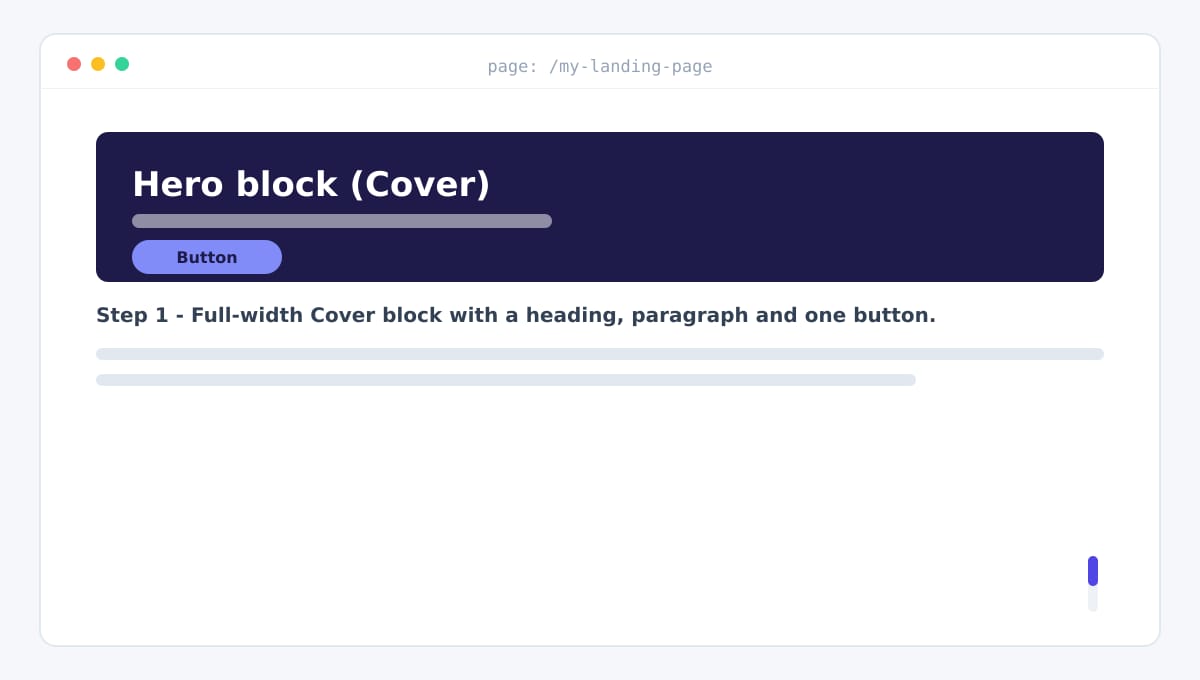
Step 3: Build the hero with a Cover block
Add a Cover block and choose a background: a solid colour, a gradient, or one of your own images from the media library. Set a minimum height around 480 pixels so the hero feels substantial, then add the content inside it:
- A Heading block set to H1 with your page title.
- A Paragraph block with one or two sentences of supporting text.
- A Buttons block with a primary and a secondary link.
Use the Cover block’s Content position and Overlay settings to centre the text and keep it readable over the background.
Step 4: Add a three-column feature section
Below the hero, add a Group block. Groups let you give a whole section its own background colour and padding, which is exactly what separates professional-looking pages from loose ones.
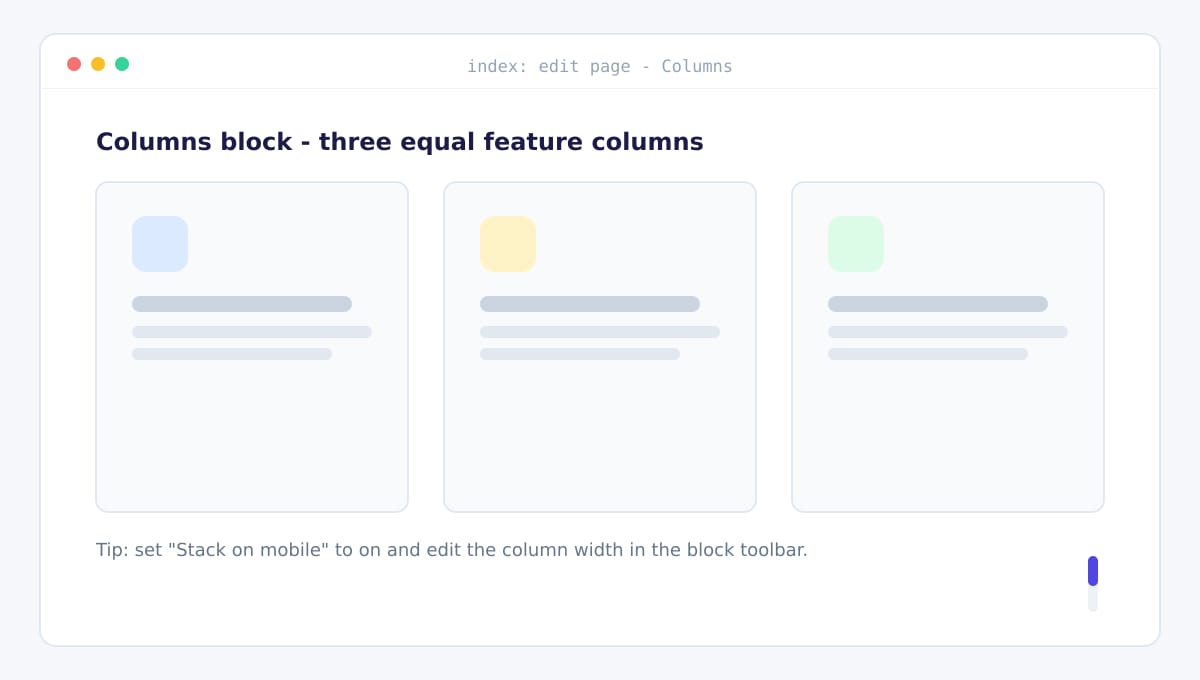
Inside the Group, add a Columns block and choose the three-column variation. Each column gets a small icon, a Heading, and a short Paragraph:
- Insert the Columns block and pick the 3-30-30-30 layout.
- In each column, add a small coloured block or icon, then a Heading, then a Paragraph.
- In the Columns toolbar, open the block sidebar and switch on Stack on mobile.
Keep the text in each column to two or three lines so the columns stay visually even.
Step 5: Alternate Media and Text sections
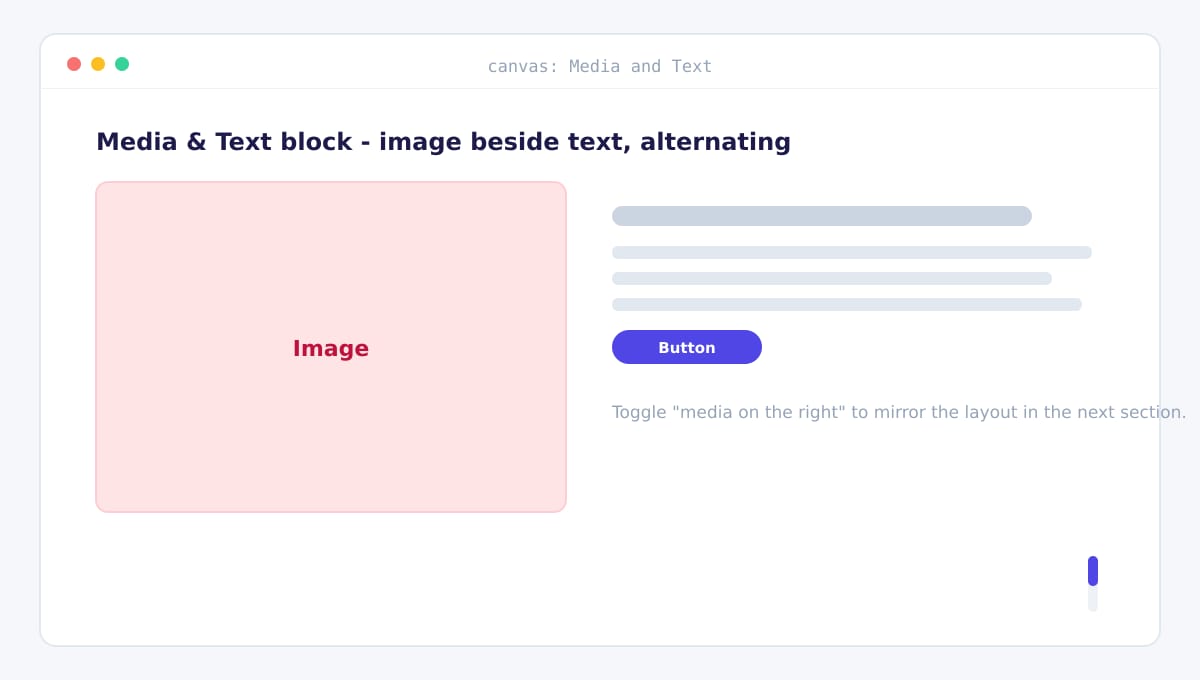
The Media and Text block produces a two-column row with an image on one side and text on the other. Use it twice, and toggle the alignment so the second row mirrors the first:
- Add a Media and Text block and choose an image from the media library.
- Set the media width to around 50 percent and pick the 50-50 variation.
- Add a Heading and a Paragraph on the text side.
- For the next section, insert another Media and Text block and turn on Media on the right.
Remember to fill in the image’s alt text. It helps accessibility and search engines, and it takes seconds.
Step 6: Add the closing call to action
Finish the page with a CTA band. Add another Group block, give it a dark background colour, and set the inner content to be centred and no wider than about 720 pixels. Inside, add a heading, one short paragraph, and a Buttons block. Save this section as a pattern later so you can reuse it on every page.
Step 7: Keep control with the List View and block toolbar
Once a page has more than a handful of blocks, the visual canvas can hide what is really going on. The List View, opened from the toolbar at the top left, shows every block and every group as a tree. Select any item there to jump straight to it, drag sections to reorder them, or rename a Group so it is obvious what it contains, for example Hero, Features, or CTA.
The block toolbar follows the same logic. Select a block and the toolbar shows only the actions that apply to it: alignment, colour, transform, and options. Getting comfortable with the List View turns a page of dozens of blocks from intimidating into something you can restructure in seconds.
Step 7b: Control spacing like a professional
Spacing is what makes a layout feel calm and deliberate. Gutenberg gives you three controls, and using them consistently is more important than the exact numbers:
- Block spacing (in the Group’s Layout panel) sets the gap between the blocks inside a group.
- Padding (in the Dimensions panel) adds space around the content of a group or cover.
- The Spacer block adds a precise gap where you need one specific measurement.
Pick a small scale and stick to it, for example 24 pixels between related items and 64 to 96 pixels between sections. Consistency across the page matters more than any single value.
Step 8: Make the layout responsive
Gutenberg handles most of the responsive work for you, but check three things on every page:
- Turn on Stack on mobile for every Columns block.
- Use the preview button (the device icons at the top) to view Tablet and Mobile, and confirm nothing overflows.
- Reduce large heading sizes on small screens using the Typography settings, or set font sizes in pixels that still read well at 375 pixels wide.
Because your sections are built from Groups and Columns, they will already collapse gracefully as long as stacking is enabled.
Step 9: Reuse the layout with patterns
Once a section looks right, do not rebuild it. Select all of its blocks, open the three-dot menu, and choose Create pattern. Your section is now available from the Patterns tab on every other page. For content that should stay in sync across the site, use a synced pattern (formerly reusable block) instead, so editing it updates every place it appears.
Patterns are one of the most underused features of the editor. Our tutorial library has more ideas for building with them.
Step 10: Review, save, and publish
Before publishing, run a short checklist:
- Preview the page on desktop, tablet, and mobile.
- Check that every image has meaningful alt text.
- Confirm the heading order is logical: one H1, then H2s for sections.
- Set your SEO title and meta description before you hit publish.
- Open the published page and click every button and link.
Native blocks versus page builders
Page builders still make sense for very complex, pixel-precise marketing pages built by designers. But for the majority of business pages, native blocks are faster to build, lighter to run, and easier to maintain. If your layout needs a hero, columns, media rows, and CTAs, you do not need an extra tool at all.
Common mistakes and how to avoid them
- Too many nested groups. Nest only when a block needs its own background or padding.
- Inconsistent spacing. Reuse the same few values everywhere.
- Forgetting alt text. Add it when you upload the image, not later.
- Hard-coding colours. Use the theme palette so the site stays consistent and easy to restyle.
- Ignoring the mobile preview. More than half of your visitors are on a phone.
- One gigantic block. Break the page into sections so each is easy to move or reuse.
Frequently asked questions
Is Gutenberg the same as the WordPress block editor?
Yes. Gutenberg is the codename for the block editor that became the default WordPress editing experience in version 5.0. When people say Gutenberg, the block editor, or the site editor, they are all referring to the same block-based system.
Do I need a page builder to make complex layouts in WordPress?
No. The core Gutenberg blocks, in particular Group, Columns, Cover, and Media and Text, are enough to build the vast majority of business page layouts without any additional plugin.
Will my Gutenberg layout work if I change my theme?
Content built with core blocks is stored as standard block markup, so it survives a theme change. Only the styling provided by your theme changes, which is exactly why it is worth using the theme colour palette rather than fixed colours.
How do I make a section full width?
Select the Group or Cover block and choose the Full width option in its toolbar. Some classic themes, including Astra, also offer a full-width page template that removes the content container entirely.
What is the difference between a Group and a Columns block?
A Group stacks its children vertically and is used to style a whole section. Columns places its children side by side. A typical section is a Group that contains a Columns block.
Can I reuse a finished section on other pages?
Yes. Select the blocks, choose Create pattern from the options menu, and the section becomes available in the Patterns library on every page. Use a synced pattern when you want changes to update everywhere at once.
Wrapping up
You just built a complete, responsive landing page using nothing but native Gutenberg blocks. The pattern to remember is simple: plan the sections, wrap each one in a Group, lay out columns where you need them, and place Cover and Media and Text blocks where they fit best. Master those few blocks and you can build almost any business page without a page builder.
If you would rather have a professional assemble and optimise the layout for your business, our team at our website studio designs and builds WordPress sites for foreign trade companies. You can also explore more step-by-step guides in the developer tools section, or pair this tutorial with our Advanced Custom Fields guide to add dynamic content to your layouts. Questions are always welcome through our contact form.