
WordPress ships lean. Plugins add the muscle.
You install WordPress, publish your first post, and then you notice how quiet a default site really is. No search engine setup. No backups. No spam filter. No contact form. That is normal, and it is by design: WordPress stays lightweight so you can add only what you need.
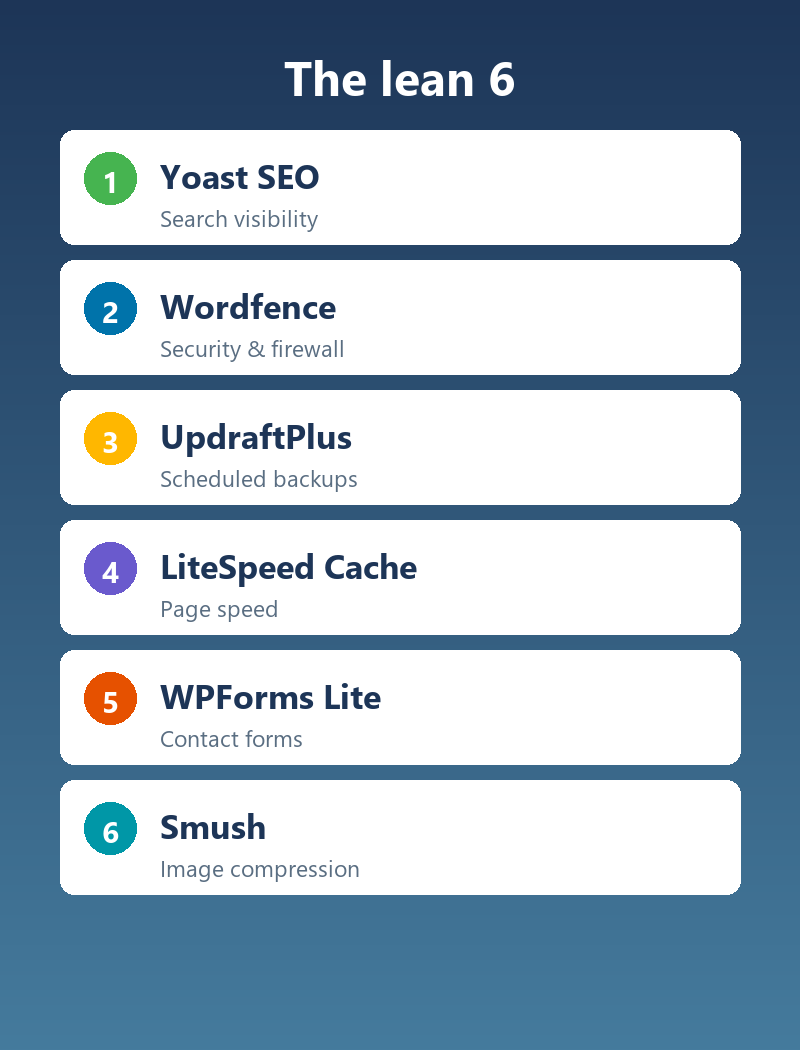
The problem is the directory holds over 60,000 plugins, and beginners often react by installing far too many. This guide cuts through the noise. Below are the six plugins every new WordPress site genuinely needs, in priority order, with the exact settings to configure so the whole job takes about thirty minutes.
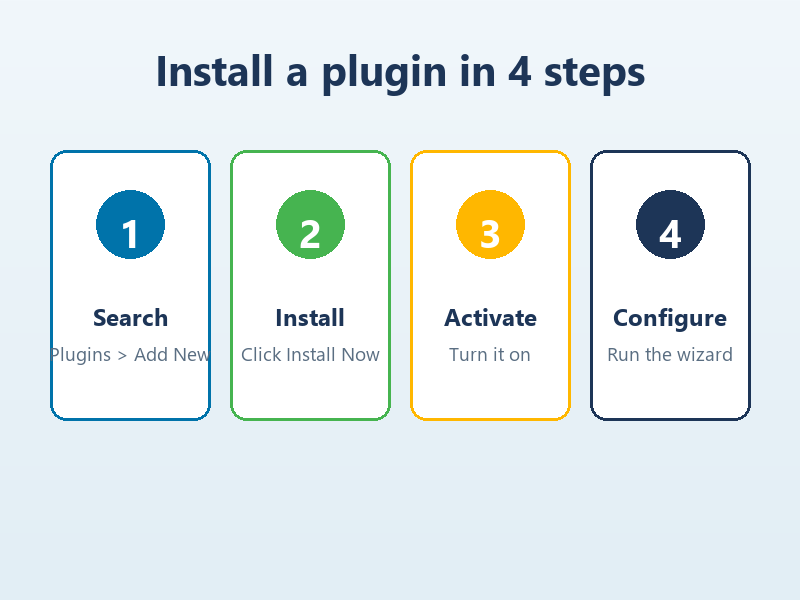
How to install a plugin (the 60-second primer)
If this is your first site, bookmark this part. From your WordPress dashboard, go to Plugins > Add New Plugin, type the plugin name into the search box, then click Install Now and Activate. For a premium plugin you bought as a zip file, use Plugins > Add New Plugin > Upload Plugin instead.
A rule that will save you later: install only what you actually use. Every plugin adds code, and code can slow a site down or conflict with something else. Six well-chosen plugins beat forty random ones every time.
1. Yoast SEO — get found on Google
Search traffic is the highest-value traffic a site can get, and WordPress does almost none of the work for you out of the box. Yoast SEO adds the two things that matter most: an XML sitemap that helps search engines crawl your site, and per-post controls for the title and meta description that show up in search results.
Install it and run the first-time configuration wizard. It will ask whether your site represents a person or a company, and it will generate a sitemap automatically. Then open any post and scroll to the Yoast box under the editor.
Set these three fields on every post
- Focus keyphrase — the single phrase you want the page to rank for, such as “must-have WordPress plugins”.
- SEO title — keep it under 60 characters and lead with the keyphrase.
- Meta description — under 155 characters, including the keyphrase plus a reason to click.
2. Wordfence Security — lock the front door
A WordPress site is scanned by bots within hours of going live, so security is not optional. Wordfence adds a web application firewall, a malware scanner, and brute-force login protection in one free package.
After activation, open Wordfence > Dashboard and complete the optimization wizard. Then do three things:
- Turn on two-factor authentication for your administrator account.
- Set login security to lock out repeated failed attempts.
- Run your first malware scan and review anything it flags.
The free tier is genuinely enough for most small sites. You do not need the paid version to be far safer than you were yesterday.
3. UpdraftPlus — your undo button
If you only remember one idea from this article, make it this one: backups are the difference between a small problem and a total loss. Hosting companies do not always keep restorable backups, and you do not want to learn that the hard way.
UpdraftPlus schedules full backups of your database, themes, plugins, and uploads. Open Settings > UpdraftPlus Backups, set a schedule (daily or weekly is fine for most sites), and choose a remote destination such as Google Drive or Dropbox so the backup lives somewhere other than your server.
Prove it works
Run one manual backup, then download the files and confirm you can see your content inside them. A backup you have never tested is only a backup in theory.
4. LiteSpeed Cache — make it fast
Page speed affects both rankings and whether visitors stay. A caching plugin serves a pre-built copy of each page instead of rebuilding it from scratch on every visit, which is the single biggest speed win available to a beginner.
The right choice depends on your host:
- LiteSpeed Cache — the best option if your host runs LiteSpeed server software, and it is unusually powerful for a free plugin.
- WP Super Cache — a reliable Automattic-made option that works well on Apache and Nginx.
After activating, enable page caching and turn on the image and JavaScript optimization options one at a time, checking your site after each change so you can spot the setting that causes a conflict.
5. WPForms Lite — let visitors reach you
A site without a contact form is a store with no doorbell. WPForms Lite is the friendliest free form builder, and it uses a drag-and-drop interface rather than asking you to write any code.
Go to WPForms > Add New, pick the Simple Contact Form template, and it is ready to embed. Open any page, insert a block, and search for WPForms to drop the form in. Test it once by submitting from a logged-out browser to confirm the notification email arrives.
6. Smush — shrink the images
Images are usually the heaviest thing on a page, and heavy pages are slow pages. Smush compresses your images automatically as you upload them and can strip unused data without a visible drop in quality.
After activation, enable automatic compression on upload and turn on lazy loading so images below the fold load only when the reader scrolls to them. Then run Bulk Smush once to compress everything you have already uploaded.
The six, side by side
| Plugin | Job | First setting to change |
|---|---|---|
| Yoast SEO | Search visibility | Run the configuration wizard |
| Wordfence | Security | Enable two-factor authentication |
| UpdraftPlus | Backups | Set a schedule and remote destination |
| LiteSpeed Cache | Speed | Enable page caching |
| WPForms Lite | Contact form | Use the contact form template |
| Smush | Image compression | Enable auto-compress on upload |
Mistakes that undo all of this
- Installing 30 plugins. Each one is maintenance and a potential conflict. Stay lean.
- Ignoring updates. Outdated plugins are the top cause of hacked sites.
- Deactivating but not deleting. Unused plugins should be removed, not just switched off.
- Testing changes on a live site. Use a staging environment for anything risky.
Build on the foundation
These six plugins are not the finish line; they are the foundation. Once they are configured, your site is searchable, protected, backed up, fast, reachable, and lightweight — which is exactly the baseline you need before you layer on anything more specialized.
If you are learning the WordPress ecosystem and want hands-on, step-by-step walkthroughs for the plugins themselves, you can keep following our WordPress plugin tutorials, where we dig into configuration in more detail and keep the explanations practical rather than academic. The habit that matters most is simple: learn one tool properly before adding the next.