
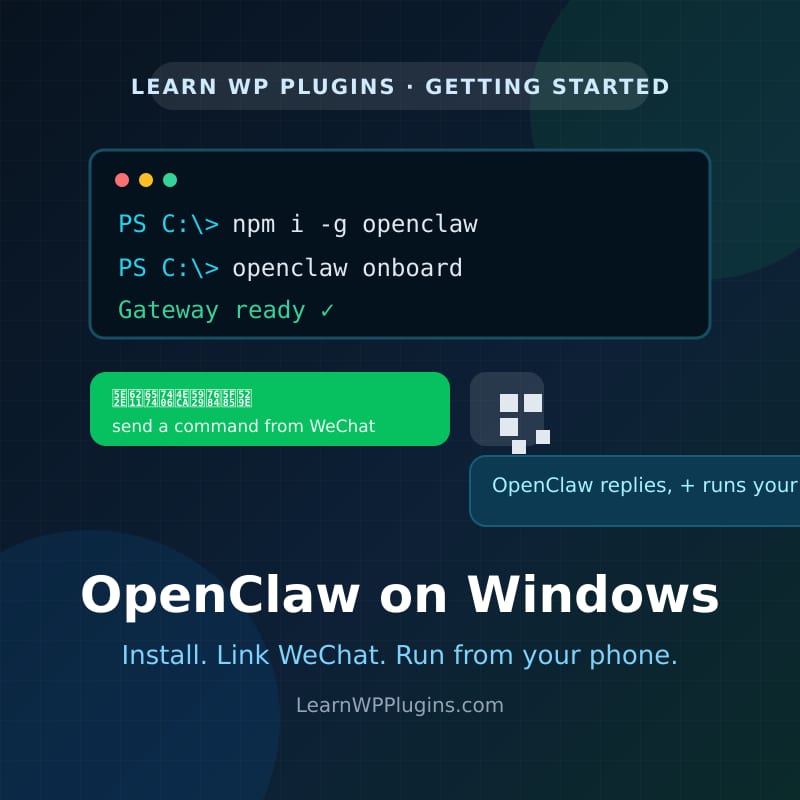
OpenClaw (many people call it the little lobster, or 小龙虾) is a personal AI agent that runs on your own computer and connects to the chat apps you already use. Once it is set up, you can send it a message from WeChat, ask it to summarise your email, tidy up a folder, or keep an eye on a website, and it just does the work in the background. This guide walks you through a clean Windows install from start to finish, then shows you how to connect WeChat and control everything from the command line or the browser WebUI.
We will do everything the do-it-yourself way, using Node.js and the terminal, instead of the one-click companion installer. That gives you full control, makes updates predictable, and helps you understand what is actually running on your machine. No prior coding experience is required. If a command looks scary, copy it exactly as written and press Enter.
What you will have when we are done
- OpenClaw installed and running on your Windows PC.
- A working Gateway, which is the background service that powers the agent.
- The WeChat channel linked by QR code, so you can send it instructions from your phone.
- The browser WebUI open, where you can chat, change settings, and watch activity.
- A shortlist of everyday commands to keep everything running smoothly.
Before you start
- A Windows 10 (20H2 or newer) or Windows 11 computer.
- The built-in PowerShell app. Press the Windows key, type PowerShell, and open it. Running it as your normal user is fine for this guide.
- A phone with WeChat installed, so you can scan the QR code later.
- An API key for an AI model provider. You will paste this during onboarding; it is how the agent thinks.
- About fifteen minutes of patience for the first run.
Step 1: Install Node.js
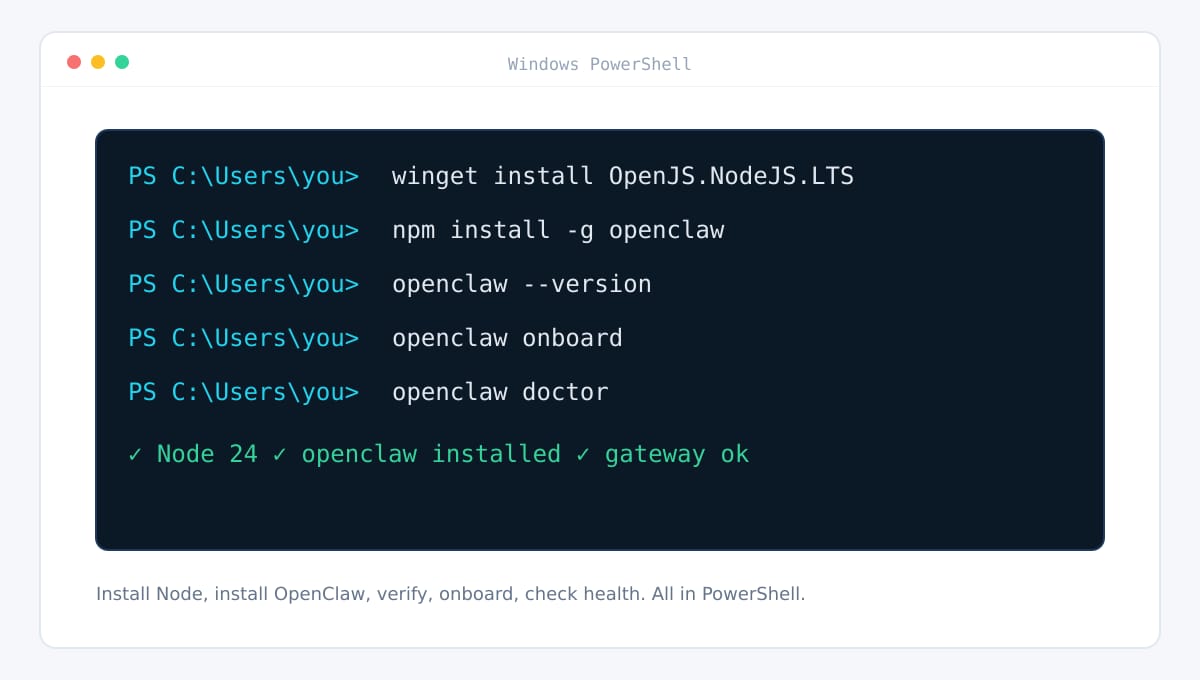
OpenClaw runs on Node.js, so we start there. Open PowerShell and paste this single line:
winget install OpenJS.NodeJS.LTSFollow the prompts, then close and reopen PowerShell so the new command is available. Check that it worked:
node -vYou should see something like v24.x.x. OpenClaw needs Node 22.19 or newer, and Node 24 is the recommended default, so any recent LTS release is perfect.
Step 2: Install OpenClaw
With Node ready, install OpenClaw globally with npm. In PowerShell run:
npm install -g openclawThen confirm the command is on your PATH:
openclaw --versionIf Windows replies that openclaw is not recognised, it almost always means npm’s global folder is not on your PATH. Run npm prefix -g to see the folder, then add it to your system PATH through Settings, System, About, Advanced system settings, Environment Variables. Open a fresh PowerShell window afterwards.
Step 3: Run the guided setup
This is the step that turns a fresh install into a working assistant. Launch the onboarding wizard:
openclaw onboardThe wizard walks you through a few questions and does the heavy lifting:
- Model authentication. Paste the API key from your AI provider so the agent can think.
- Workspace. Where your agent keeps notes and files. The default is fine for most people.
- Gateway. The local service that connects everything together.
- Channels. You can skip chat apps for now; we will add WeChat in a moment.
- Health check. Let it verify the basics before you continue.
Prefer a shorter path without the full guided tour? openclaw setup creates a baseline configuration and workspace, and openclaw configure changes specific pieces later.
Step 4: Start the Gateway and check its health
The Gateway is the engine. To run it in the foreground while you are testing, use:
openclaw gateway runFor everyday use you want it running quietly in the background, and starting again after a reboot. Install it as a managed service:
openclaw gateway install
openclaw gateway status
On Windows this is set up as a scheduled task, so it launches without a visible console window. If anything looks off, run the doctor, which checks Node, configuration, the Gateway, and your channels:
openclaw doctorStep 5: Open the WebUI (Control UI)
OpenClaw ships with a browser interface called the Control UI. It is served by the Gateway on port 18789. The easiest way to open it with the right credentials is:
openclaw dashboardIf you prefer to open it yourself, visit http://127.0.0.1:18789/ in your browser. Treat this page like an admin panel: it can chat with the agent, show sessions and activity, manage channels and nodes, and change settings.
The first time a new browser or device connects, the Gateway asks for a one-time pairing approval. That is a safety feature. List the pending request and approve it:
openclaw devices list
openclaw devices approve <requestId>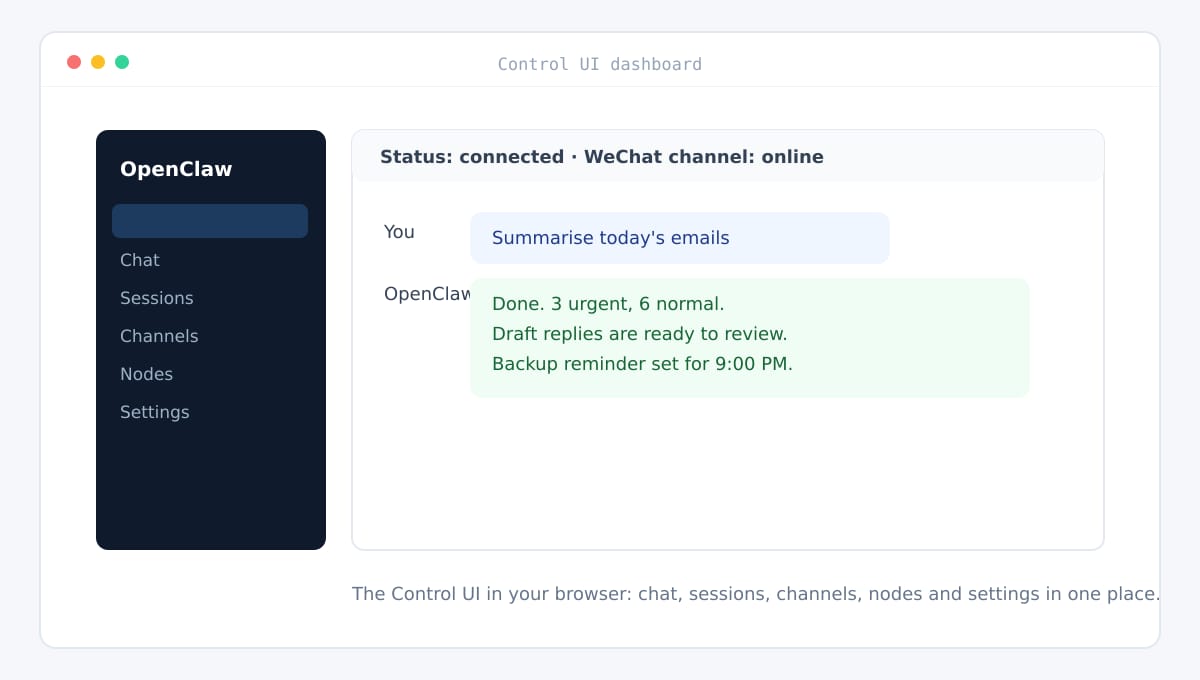
Step 6: Add the WeChat channel
WeChat support comes from a plugin published by Tencent, so it stays separate from the OpenClaw core. Installing it takes one command:
npx -y @tencent-weixin/openclaw-weixin-cli@latest installIf you would rather install it manually, the same job is done in three steps:
openclaw plugins install "@tencent-weixin/openclaw-weixin"
openclaw config set plugins.entries.openclaw-weixin.enabled true
openclaw gateway restart
Always restart the Gateway after adding or updating a channel plugin so the new code is loaded.
Step 7: Link WeChat by scanning the QR code
Now connect your phone. Run the login command on the same computer that runs the Gateway:
openclaw channels login --channel openclaw-weixinA QR code appears in the terminal. Open WeChat on your phone, tap the plus sign at the top, choose Scan, and point your camera at the code. Confirm the login on your phone. The plugin saves the account token locally, so you only need to do this once.
The next time someone new messages the linked account, approve them so the agent will answer:
openclaw pairing list openclaw-weixin
openclaw pairing approve openclaw-weixin <CODE>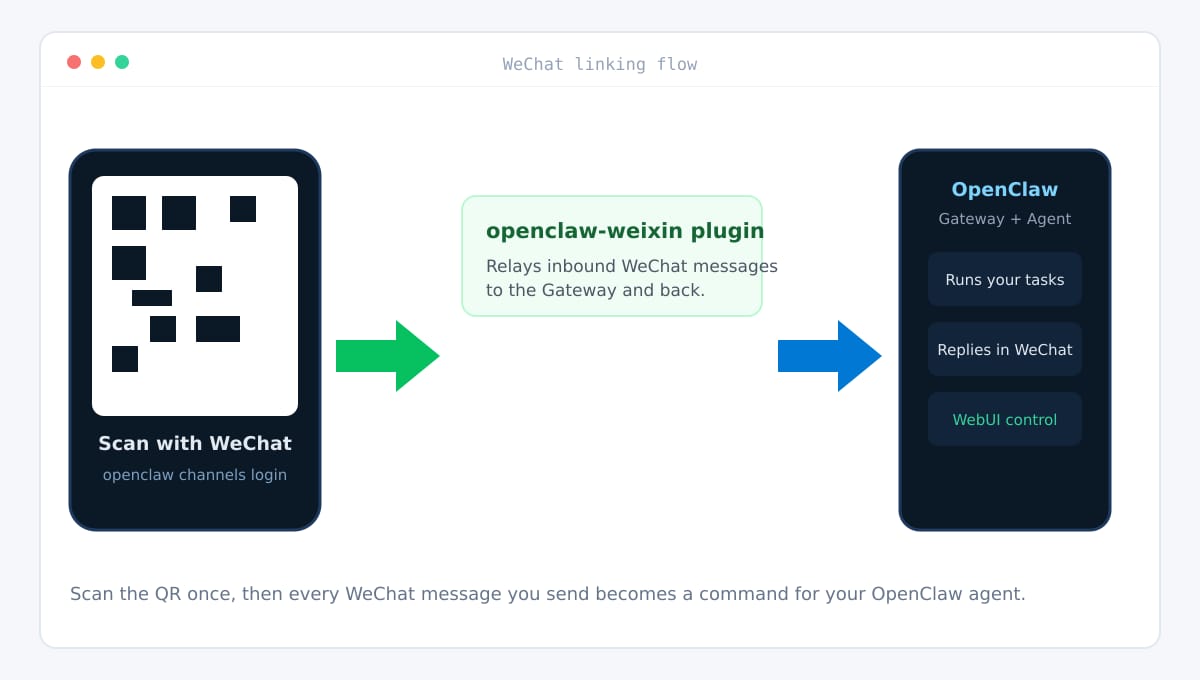
Step 8: Send your first command from WeChat
That is it. Open WeChat on your phone and send a message to the account you just linked, for example: Summarise the unread email in my inbox and list anything urgent. The message travels to the plugin, into your Gateway, and to the agent, which does the work and replies in the same chat.
A few good first commands to try:
- Give me a five-point summary of today’s inbox.
- Write a polite reply to the last message from a customer and save it as a draft.
- Remind me to back up the website at 9 PM tonight.
- Check whether my website is online and tell me the response time.
Everyday commands worth knowing
You do not need to memorise all of these. Bookmark this section and come back when you need it. Run any of them in PowerShell.
| Command | What it does |
|---|---|
openclaw --version | Show which version of OpenClaw you have. |
openclaw status | Print an at-a-glance health card: gateway, model, channels, usage. |
openclaw doctor | Diagnose common problems and suggest fixes. |
openclaw onboard | Re-run the guided setup, for example to add or change a model. |
openclaw configure | Change one part of the setup, such as channels or plugins. |
openclaw dashboard | Open the Control UI in your browser. |
openclaw gateway status | Check that the background Gateway service is running. |
openclaw gateway restart | Restart the Gateway after installing plugins or changing config. |
openclaw channels list | List configured chat channels and their accounts. |
openclaw channels status | Check whether each channel is connected or needs attention. |
openclaw channels login --channel openclaw-weixin | Scan the QR code to link or re-link WeChat. |
openclaw pairing list openclaw-weixin | See senders waiting for approval. |
openclaw pairing approve openclaw-weixin | Allow a sender so the agent can reply. |
openclaw devices list | See devices (browsers, nodes) waiting for approval. |
openclaw devices approve | Approve a device to use the Control UI. |
openclaw plugins list | Show installed plugins and their state. |
openclaw plugins install | Add a new channel or capability plugin. |
openclaw logs | Tail the live log when something is misbehaving. |
openclaw sessions | List recent sessions so you can pick up where you left off. |
openclaw cron | Manage scheduled jobs and reminders. |
openclaw tasks | Inspect background tasks that are running. |
openclaw nodes status | Check paired companion devices. |
openclaw update | Update OpenClaw to the newest version. |
openclaw backup create | Create a backup of your OpenClaw state. |
openclaw security audit | Run a quick security review of your setup. |
A simple daily routine
Once everything is connected, a few small habits keep the setup fast and reliable:
- Start your day with
openclaw statusto confirm the Gateway and WeChat channel are healthy. - Do your work from wherever you are: send commands from WeChat, and use the WebUI when you want to see detail.
- Update regularly with
openclaw updateand restart withopenclaw gateway restart. - Take a backup with
openclaw backup createbefore big changes. - If something breaks, read the log with
openclaw logsbefore changing anything.
Troubleshooting the most common hiccups
- openclaw is not recognised. Node’s global bin folder is not on your PATH. Fix the PATH and open a new terminal.
- The Gateway will not start. Run
openclaw doctor, thenopenclaw logsto see the reason. - WeChat shows offline. Restart the Gateway, then re-run the login command to refresh the QR session.
- The plugin complains the version is too old. Update OpenClaw, or install the plugin’s legacy line if you must stay on an older core.
- The WebUI says pairing required. Approve the device with
openclaw devices approve.
Frequently asked questions
Do I have to use the companion installer?
No. The native companion app is convenient, but installing through Node.js and the terminal gives you the same Gateway and more control over versions and updates. This guide uses only the command line on purpose.
Will OpenClaw run when my computer is off?
No. Your computer is the machine doing the thinking, so the agent can only work while the PC is on and the Gateway is running. Installing the Gateway as a service makes it start automatically when you log in.
Is it safe to connect WeChat?
The plugin stores its account token locally in your OpenClaw state folder, and new senders must be approved before the agent replies. Keep the WebUI on localhost or behind a private tunnel, because it is an admin surface.
Do I need to re-scan the QR code often?
Usually not. The token is saved after the first scan. You only need to scan again if you log the account out or the session expires.
Can I connect more than one WeChat account?
Yes. Run the login command again for each account. If you do, scope direct messages per account, channel, and sender so conversations do not get mixed up.
Wrapping up
You now have a private AI assistant running on your own Windows machine, reachable from WeChat, and controllable from both the terminal and the browser. Start with the handful of commands above, add a couple of reminders, and let the small tasks drift off your plate. The more you use the WeChat and WebUI paths, the less time you will spend maintaining things by hand.
If you would like help wiring OpenClaw into your business workflows, or a hand setting up the website side of things, our team at our website studio builds and automates WordPress sites for foreign trade companies. For more step-by-step guides, browse the tutorial library, and if anything here is unclear, send us a message.